
Folder System
Data sources, datasets, charts, and dashboards share one folder tree. Create, rename, move, and delete folders, and control permissions per folder.
To simplify resource permission management, we have unified the resource management systems for Data Sources, Datasets, Charts, and Dashboards under a common Folder System.
This approach offers several benefits: users can create folders based on data topics, user groups, or departments, and put resources from different modules into the same parent folder (including multi-level subfolders).
When assigning permissions, you only need to grant access once at the parent folder level. This automatically applies the same permissions to all resources within that folder.
Note
Different modules only display their corresponding resource types. For example: The Dashboard module view displays only dashboards. The Insight module view displays only charts.
Folder Context Menu
Right-Click resource tree node show context menu
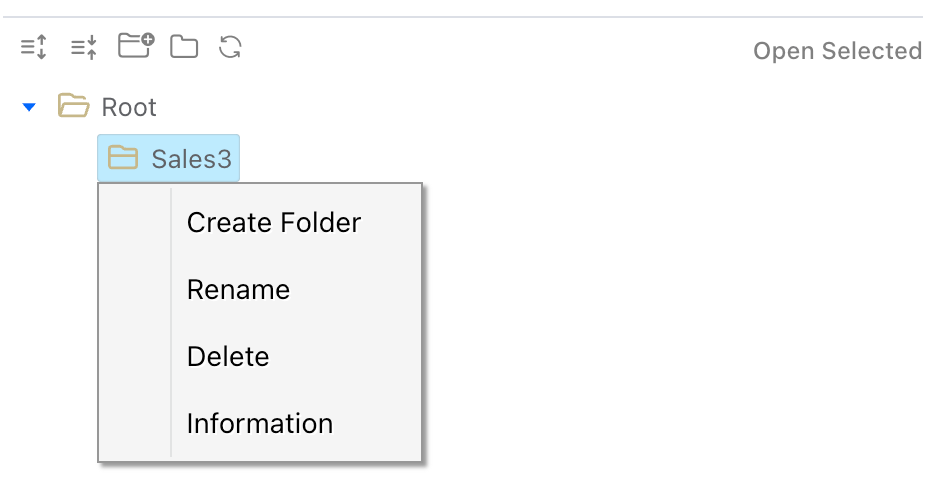
Create Folder
Right-Click any folder in the directory tree and select "Create Folder" from the context menu.
Rename
Right-Click a folder or resource node in the directory tree and select "Rename".
Delete
Right-Click a folder or resource node in the directory tree and select "Delete". When deleting a folder, the system performs a dependency safety check. Only empty folders can be deleted.
Tip
The root folder (Root) only supports the "Create Folder" action via right-click.
Folder creation is also available in any resource tree dialog throughout the application.