
User and Role
Role-based access control for the BI platform — users, roles, and the resource lists assigned to them, plus the three administration modes.
User and Role
RBAC
RBAC (Role-Based Access Control) consists of three parts: users, roles, and operations/resources. The access list, also known as the resource list, is assigned to roles/user groups. Granting a user one or more groups gives the user the resource access permissions of those groups. In hybrid mode, resources can be directly assigned to users, which is more flexible for complex and changing business scenarios in internet companies. Since version 1.2, IBI has started to support direct user-based permission assignment.
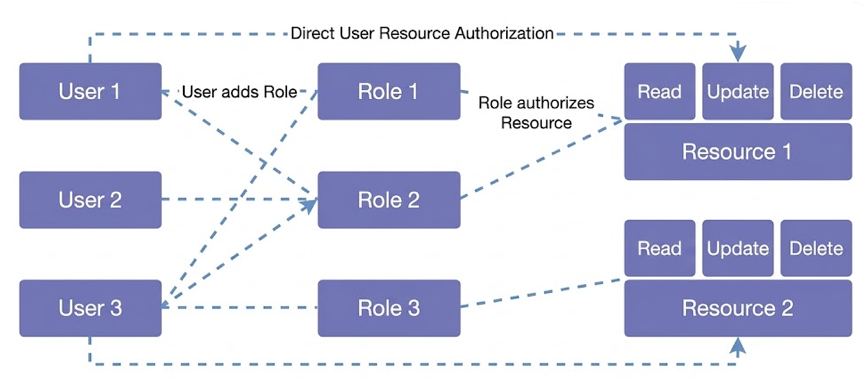
Permission Management
Correspondingly, the user management interface is also divided into three sections, supporting three view modes: user management / role management / user, role, and resource overview.
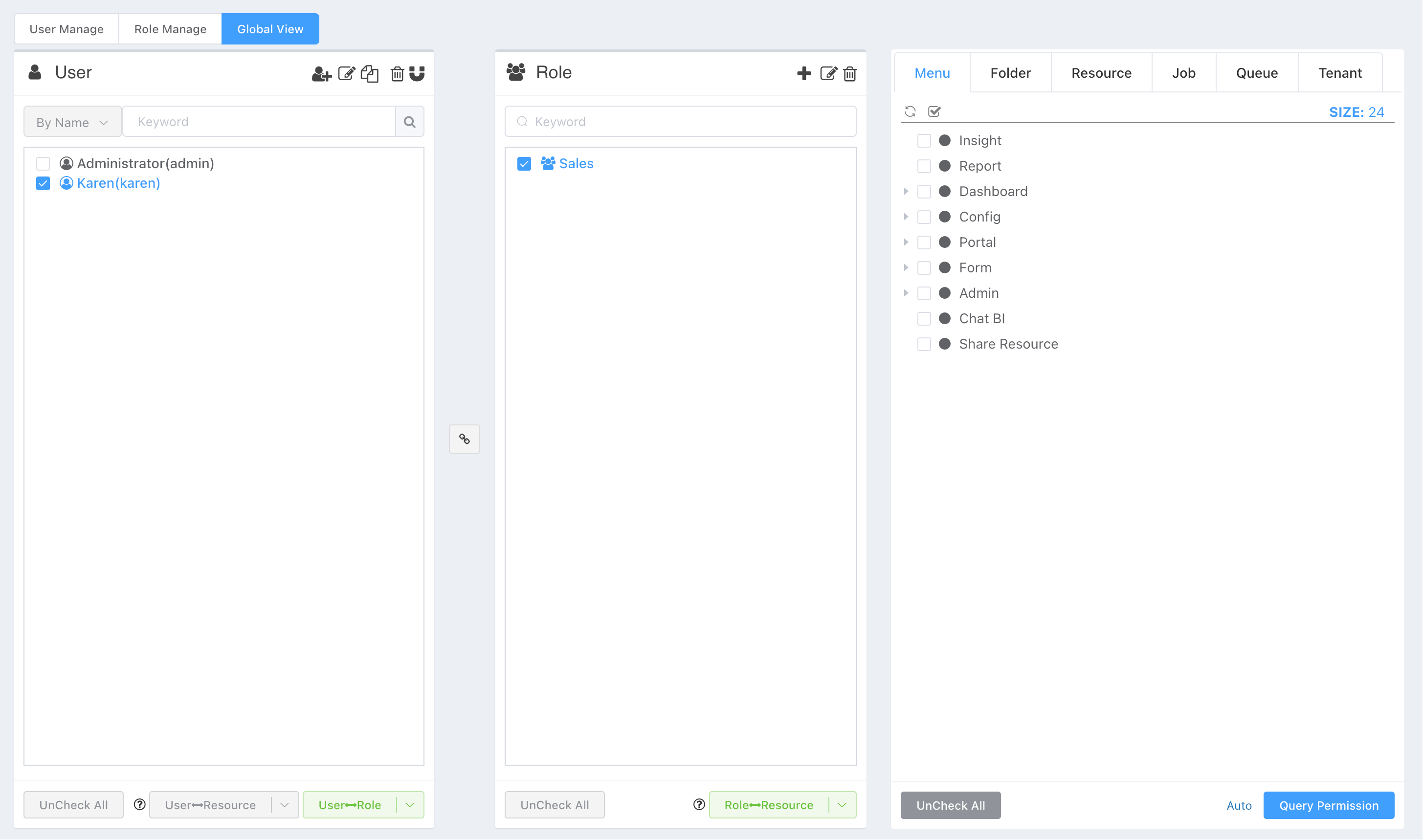
| Section | Introduction |
|---|---|
| User Pane | List of all users. Currently, only super administrators can create, edit, and delete users. |
| Role Pane | List of all roles. However, users can only change the role items for which they are role administrators. |
| Resource Pane | Resources are categorized by tabs: menus, data sources, resources (datasets, charts, dashboards organized in folders), and scheduled tasks. |
Authorizing folder resources has an inheritance effect. If permissions are not set separately for child nodes, child nodes inherit permissions from the parent node.
Features
To simplify user, role, and permission management, we have integrated tasks that originally required multiple operation pages into a single page. In other systems you may have used, there might be one page for user management, one for role management, and another for role permission management. To view the combined permissions of a user assigned multiple roles, one usually had to rely on memory.
In our system, viewing, adding, editing, and permission management are unified on a single page, avoiding switching between different interfaces, thus providing a WYSIWYG user experience!
The following explanations can resolve doubts you may have about operations. Under normal circumstances, we believe you can get started quickly without documentation.
Three Operation Modes
Mode 1: User Management
In user management mode, you can see two panes: the left pane is the user list, and the right pane is the resource list. In this mode, you can:
- Manage and edit user information.
- View the direct relationship between users and resources.
- Update user permissions.
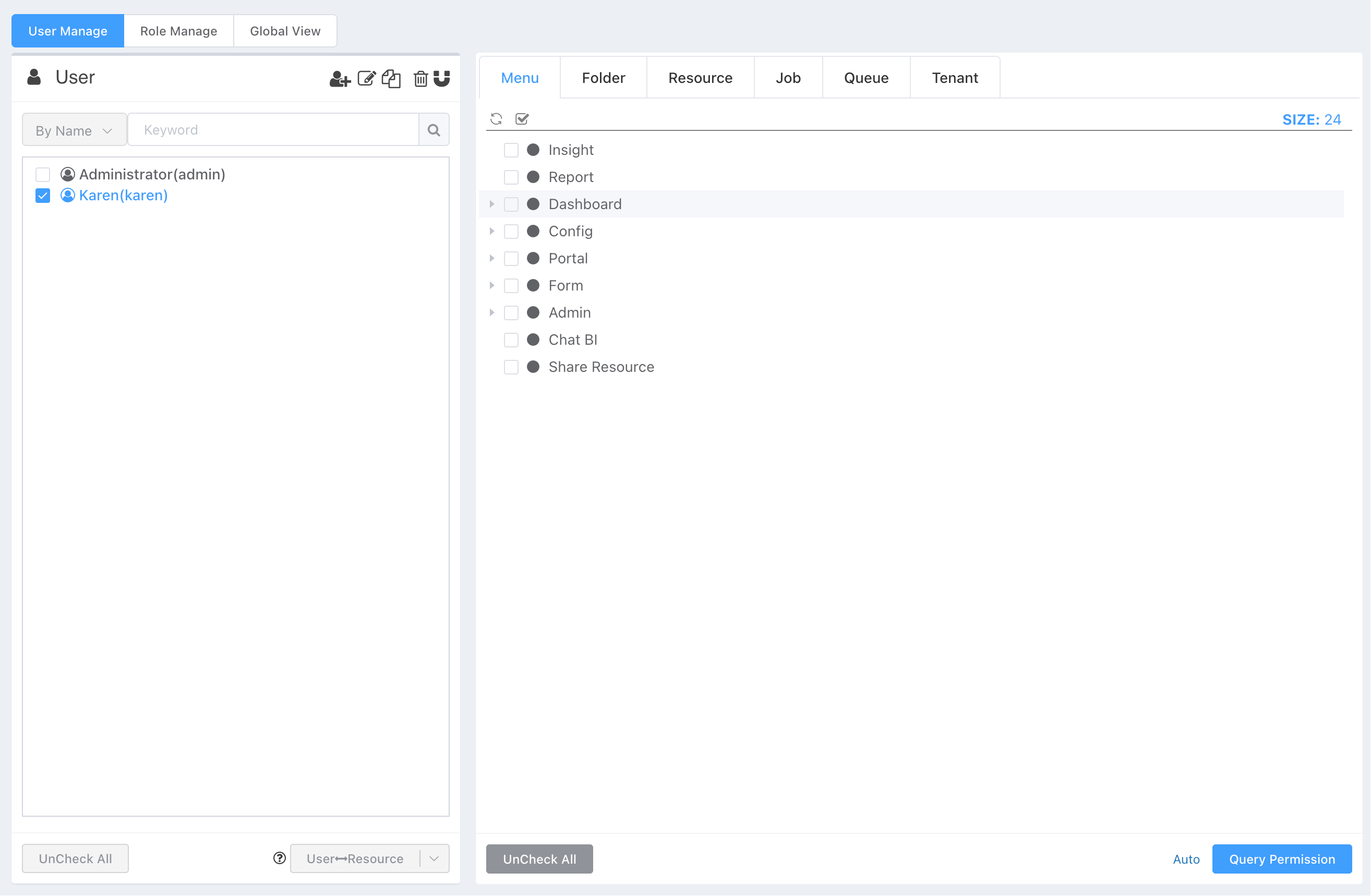
- The resource pane monitors the user selection status. When a single user is selected, the right pane synchronizes with the selected user, achieving the function of querying user permissions.
- Selecting multiple users or deselecting all users cancels all selections in the resource pane.
- When a user has the
Menu -> Management -> User Management -> User Resource Managementpermission, an authorization button appears below the user pane for user authorization:- Click the
User-Permissionbutton to authorize. The dropdown authorization button allows revoking user permissions. - User authorization content is incrementally updated. The system automatically detects if the current authorization exists during new authorization. If it exists, the original authorization is deleted and updated with the current operation's authorization.
- When switching between multiple tabs in the resource pane, you might forget the selection status of previous tabs. To avoid incorrectly adding or deleting resources from non-current tabs in multi-user state, the authorization content is only for resources under the currently active resource tab.
- Supports authorizing multiple users at once.
- Click the
Mode 2: Role Management
In role management mode, you can see two panes: the left pane is the role list, and the right pane is the resource list. In this mode, you can:
- Manage and edit role information.
- View the direct relationship between roles and resources, including permissions for a single role or combined permissions for multiple roles.
- Update permissions for roles.
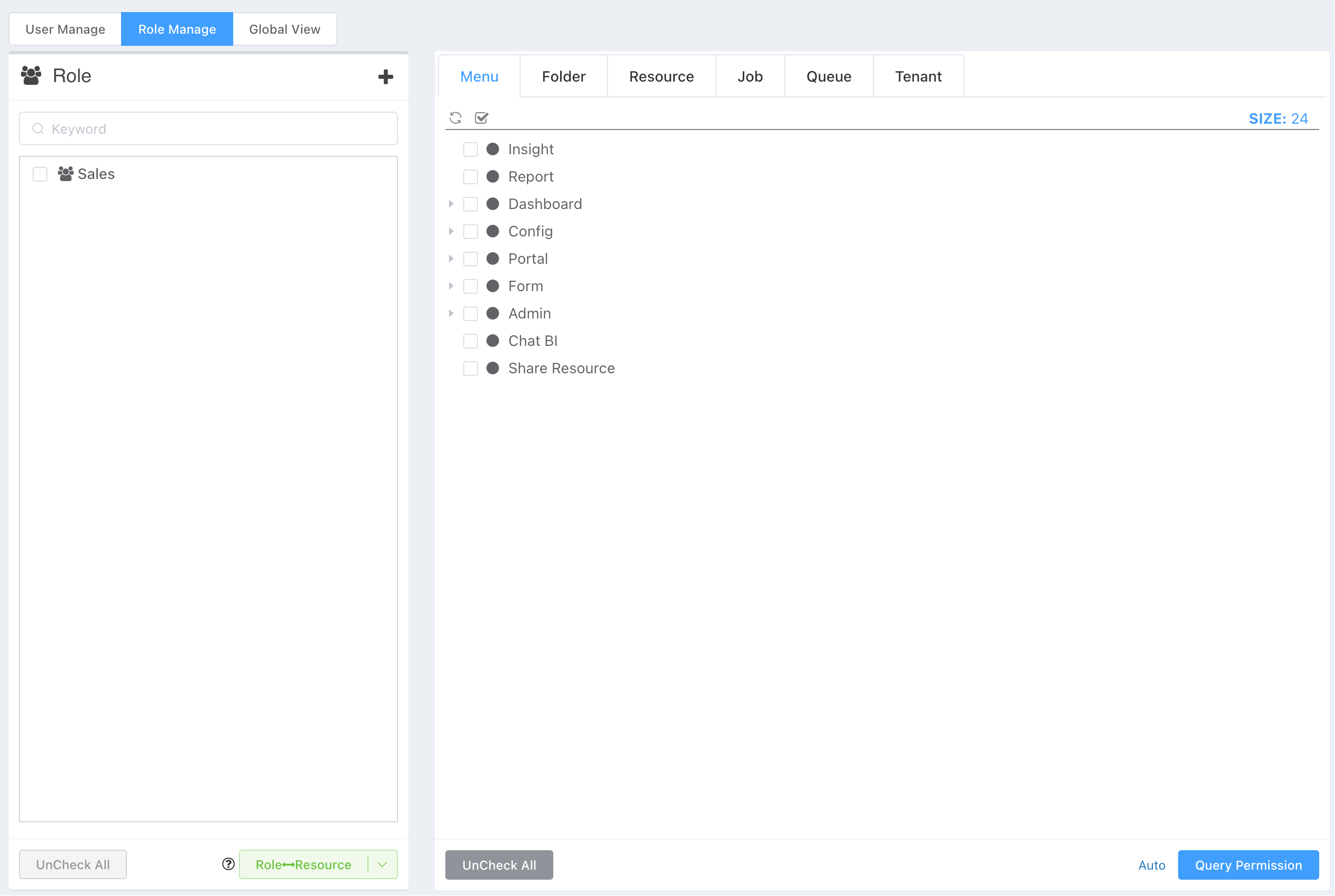
Resource Pane Synchronization: Unlike user-resource synchronization, when multiple roles are selected, the resource pane displays the combined permissions of all selected roles. This design is because we often assign multiple roles to a user, and showing the combined resources facilitates viewing all accessible resources when a user has multiple roles.
- The resource pane monitors role selection status. When the selected role changes, the resource pane synchronizes with the selected role, achieving the function of querying role permissions.
- Authorization:
- Click the
Update Role Resource Permissionsbutton to authorize. Authorization is full authorization. - Currently, only one role's permissions can be updated at a time (future updates will support incremental updates for multiple roles, similar to user management).
- Click the
Mode 3: Global View
In permission overview mode, you can see three panes. In this mode, proficient users can even complete all permission-related operations:
- Perform all user management operations supported in user management mode.
- Support all role management operations supported in role management mode.
- Support viewing and managing relationships between users and roles.
- Support viewing the combined resources directly authorized to the user + resources indirectly authorized through the user's roles.
- View User Roles and Permissions: Selecting a single user synchronously selects the roles to which the user belongs, making it convenient to view user roles. Simultaneously, all permission lists for that user (including user permissions and combined permissions from roles) are updated in real-time.
- Query and Modify Direct User Permissions: Deselect user-role synchronization. With a single user selected, the direct relationship between the user and resources updates in real-time, with the same effect as User Management Mode.
- Modify (Authorize, Revoke) User Roles: Deselect all users. At this point, the real-time synchronization between roles and resources allows management with the same effect as Role Management Mode.
- Query Role Permissions: When no user is selected, the synchronized selected resources are the permissions of the currently selected role (when a user is selected, permissions directly authorized to the user are mixed in).
When multiple roles are selected, the synchronized selected resources are the combined permissions of all currently selected roles.
Other Management
User List
- Click the + sign to
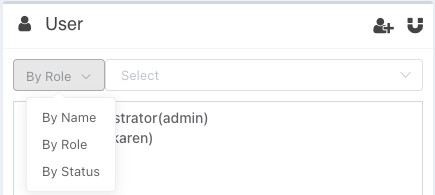
Add New User: Only administrators can create new users. Edit and Delete: The edit and delete menus in the top right only appear when a single user is selected.- Search Users: Default search by username (including login name). Click the By Name button in front of the search box to switch to searching by user group.
- Multi-select checkbox to select users or roles
- User ↔ Resource: direct authorization to users is supported.
- User ↔ Role: Authorize or revoke permissions.
- After selecting a user, the corresponding roles for that user can be synchronously selected. Simultaneously, all permission lists for that user (including user permissions and combined permissions from roles) are updated in real-time.
Role
- Click the + sign to add a role and assign an administrator to that role (the role administrator's group needs to have access to the management function menu).
Edit and Delete: The edit and delete menus in the top right only appear when a single role is selected.- Role administrators are used to manage the members of the current role.
- Except for Admin, role administrators can only manage roles they own; other roles are not editable.
- Only one role's resource permissions can be updated at a time.
Resources
Menu: First-level and second-level menus are controlled separately, without cascading.Folders: Subfolders inherit permissions from parent folders. For detailed explanation of folders, refer to Folder System- After reasonably organizing resources in folders,
dashboards/datasets/chartsmay not need separate permission control; special requirements can be controlled individually. - Child nodes under a folder inherit permissions from the nearest parent node if permissions are not modified separately. When selected, they follow their own state. For example, if the parent node has read-write-delete permissions and the current node is read-only, the final permission is read-only.
Resource View/Modify/Delete: Resource permissions includeView, Modify, Delete. Right-clicking a resource node can toggleModify, Deletestatus.- Role administrators can only manage roles for which they are the owner.
Data Permission Control
The Enterprise Edition supports setting fine-grained access permissions for roles, with control down to the cell level. Here are detailed operation instructions:
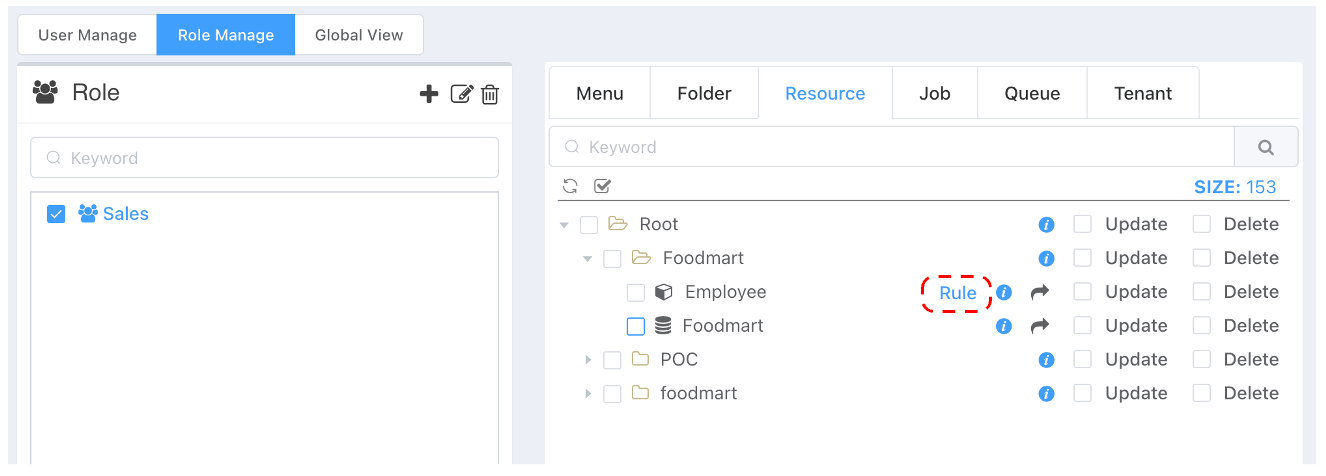
Suppose we have two sales teams in different regions, the US Group and the Canada Group. The administrator wants each group to only see their own data. In the role pane, select the US Group, select the dataset that needs rule addition, and right-click Rule.
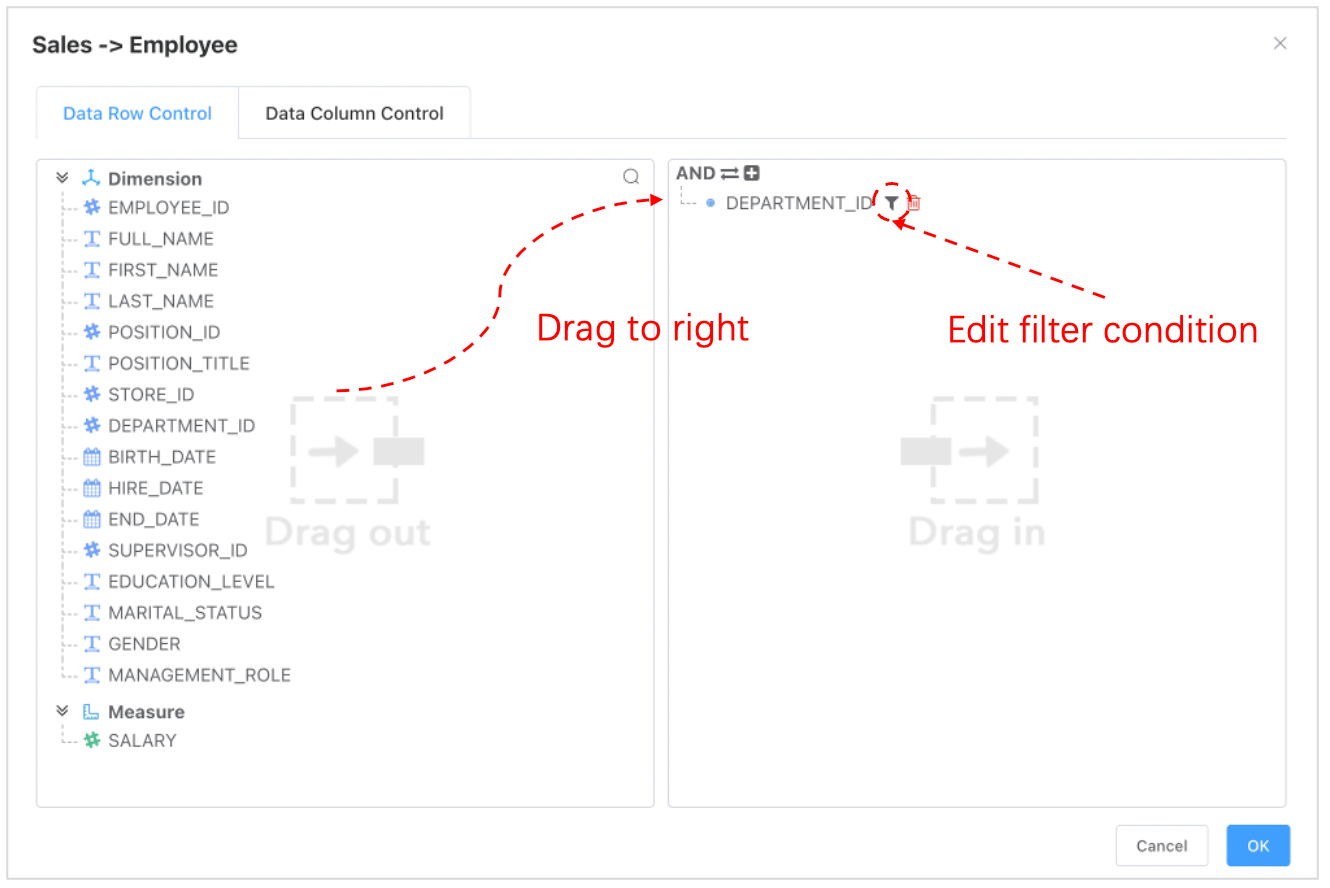
An interactive box pops up. The left side lists all columns under the dataset. Drag a column to the AND node, then click the edit button to enter a field filtering window similar to the one used during chart design:
Query Dimension Members
The difference between dimension member filtering settings here and in self-service analysis is that dimension member settings here support dynamic query scripts. Imagine that your company might have maintained a set of user and business data permission management tables in other systems before introducing the BI system. Here, you can conveniently import external relationships from other systems into the BI system through dynamic queries, allowing multiple systems in your company to share a set of permission data.
Common query variables supported for dynamic queries include:
| Variable | Explanation |
|---|---|
| loginName | Login account |
| userName | User alias |
When dimension member filtering for a role becomes dynamic data, the role itself can be used as a variable rule. For example, originally, a role needed to be created for users in each country, then selecting the visible country dimension members for that role (e.g., Food Market - Canada Group, Food Market - US Group, etc.) can be unified into a dynamic rule group Country Filter Rule Group.
select deptId
  from acl_table
 where user = ${loginName}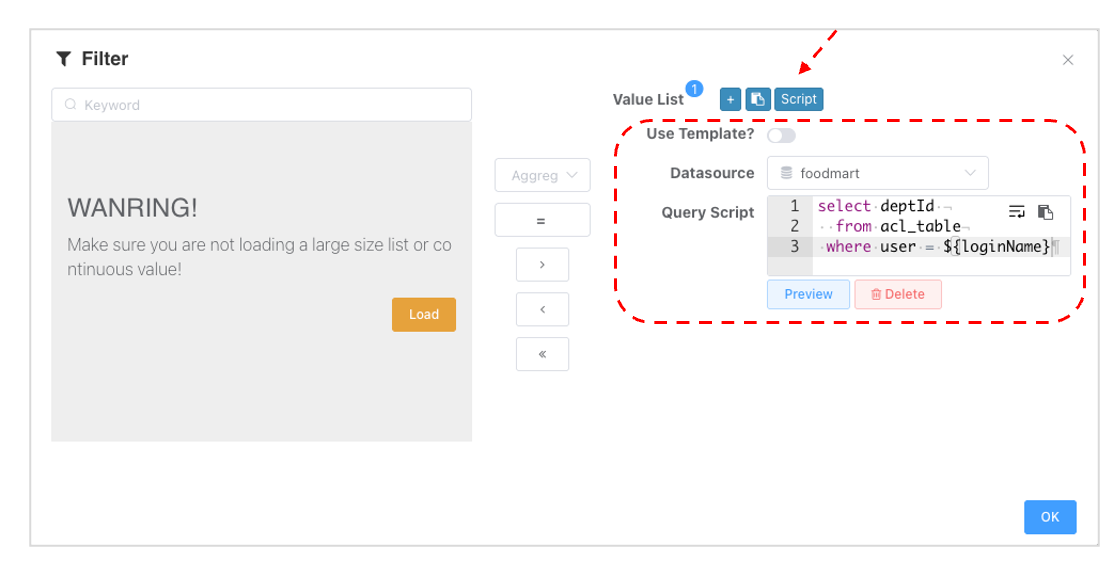
Additionally, you can also:
- Add filters for multiple fields.
- Switch the relationship between multiple nodes at the same level to
ANDorOR. - Add multi-level nodes.
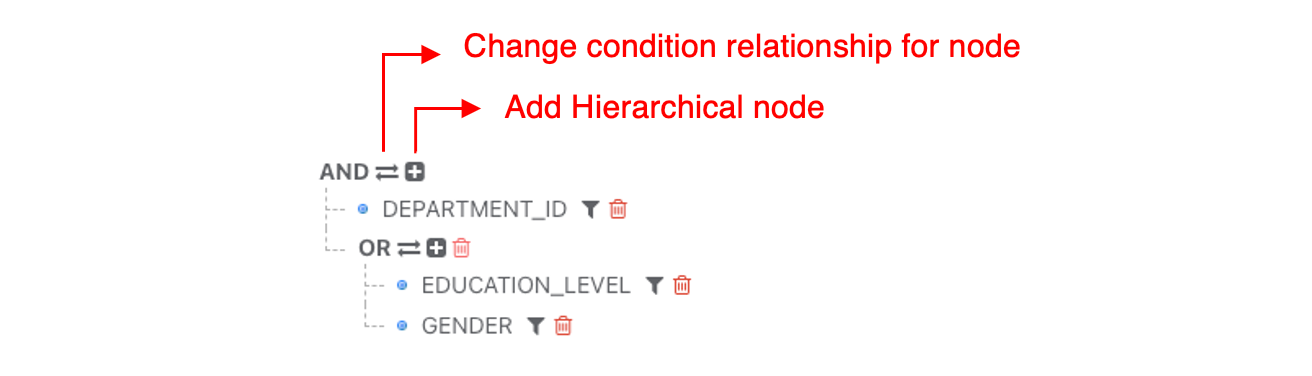
Field Visibility Control
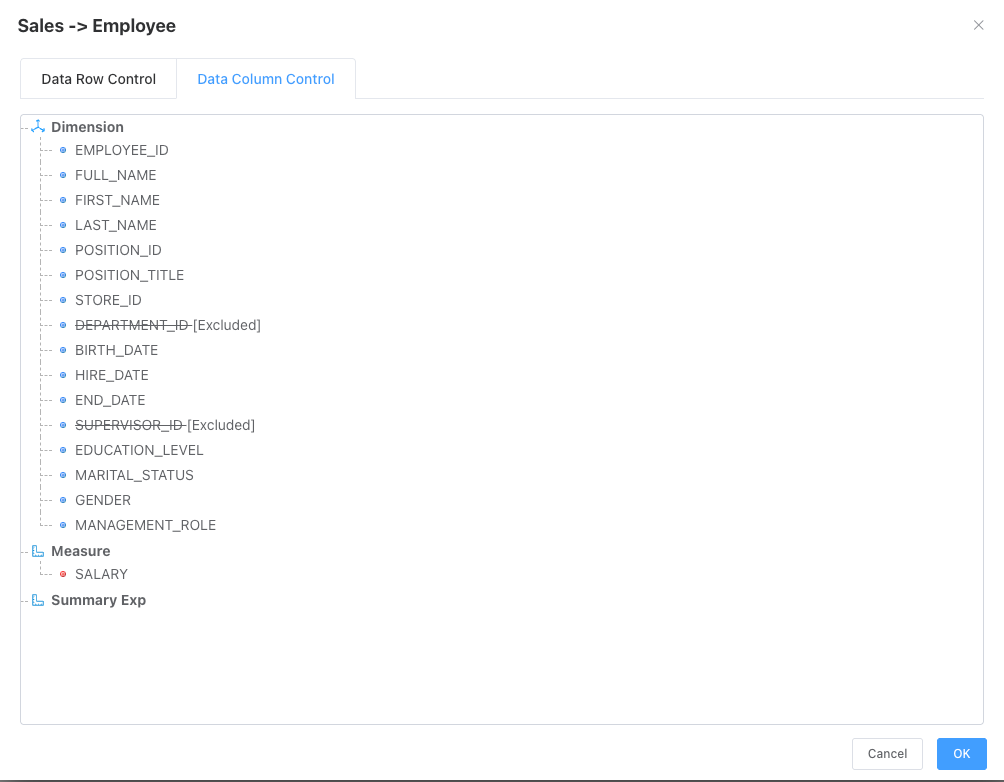
Switch to the Exclude tab. You can also control the visibility of model nodes (including: hierarchies, dimensions, metrics, expressions, and filters) for that role.
As shown below, configuring that the Sales Role cannot see DEPARTMENT_ID when using the dataset.
User-Based Data Control
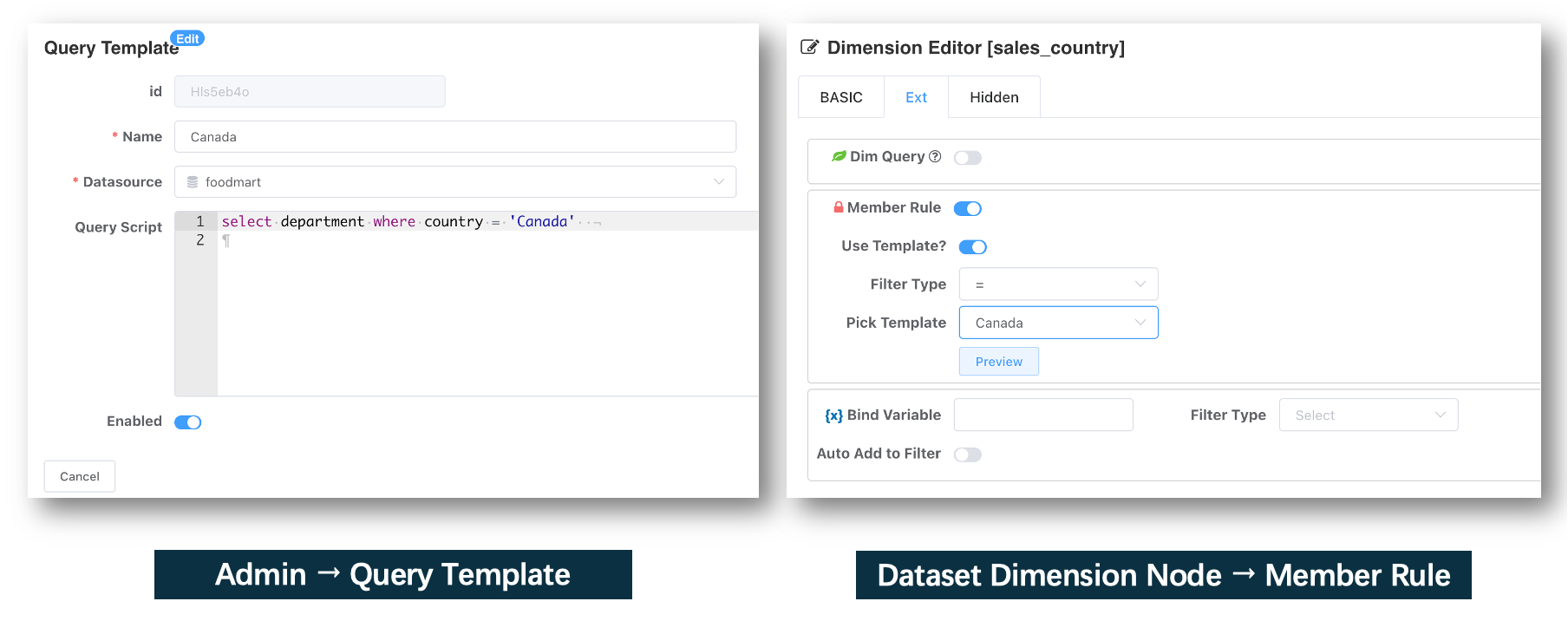
Dataset permission templates can control data access permissions for different users on datasets. Query templates can query external system permission data, making it convenient to integrate BI system permissions with external system permissions.
Operation Steps:
- Edit a dimension node and turn on the permission rule switch in the advanced configuration panel.
- You can use direct queries: select the data source connection where permission data resides -> write a query. The query can distinguish user permission scopes using the
${loginName}variable. The first column of the query is the data range limited by the current dimension. - You can also use predefined templates from permission templates (query templates).
- Query templates can currently only be uniformly configured by administrator accounts. Configuration path:
Management→Permission Templates.
- Query templates can currently only be uniformly configured by administrator accounts. Configuration path:
Variable Examples
Practical variable recipes — date ranges, dynamic filters, cascading selects, and passing values into dataset queries.
Restful Interfaces
REST API reference for authentication, folders, dashboards, data sources, and datasets. Use the token from the auth call to sign every subsequent request.