
Dashboard Migration
Move dashboards between deployment environments. Export dashboard metadata as a zip, analyse the package, then import it into the target instance.
Solutions for migrating dashboard metadata across different deployment environments:
- Export and import dashboards and related metadata.
- Dashboard metadata import supports unified folder configuration.
Dashboard Metadata Export
The current import and export of dashboard definitions are only supported for administrator operations. This can be performed on both the dashboard page and the dashboard management page. Starting from version 1.8, exporting multiple dashboard definitions at once on the dashboard management page is supported.
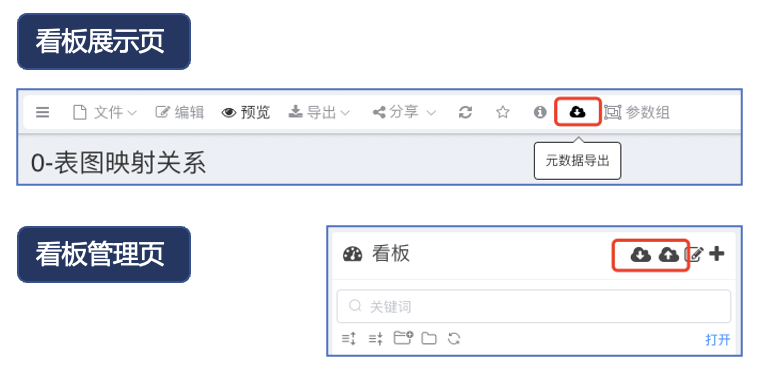
All resources related to the dashboard are exported in the form of JSON files, with different resources stored independently. Each line in a JSON file corresponds to a complete record.
├── board.json
├── dataset.json
├── datasource.json
├── folder.json
├── user.json
└── widget.json
Dashboard Metadata Import
Administrators upload a zip package in the dashboard management directory and parse the resources within the zip package.
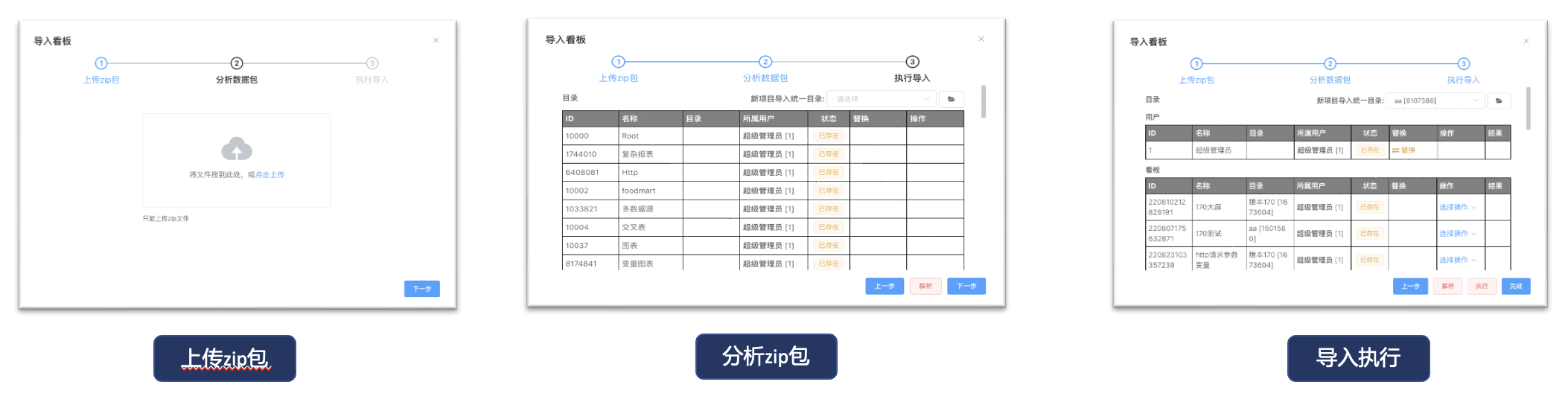
1. Upload Zip Package
- The zip package is the compressed file exported in the export step.
- You can drag and drop or click the upload button to select the directory.
- Supports uploading multiple zip packages at once.
2. Analyze Data Package
After the upload step, click Next to enter the "Analyze Data Package" step. Click the Parse button in the lower right corner to parse the package.
The parsed package content includes: folders, users, dashboards, data sources, datasets, charts, and complex reports.
Feature Point Introduction
Q: Why use offline migration instead of directly configuring database connection?
A: Considering that networks between different environments may not be connected, offline migration is adopted.
Q: Duplicate Resource Handling
A: Each resource has a status column. By analyzing the resource ID, it's determined whether it already exists in the current system. For duplicate resources, the operation column defaults to Skip if not selected.
Q: What is the purpose of the folder replacement function?
A: To solve the issue of inconsistent folder directories in different environments. The current migration only supports unified directory replacement. After setting a unified directory, new directories are not imported.
Q: What is the role of user replacement?
A: To solve the problem of inconsistent accounts in different environments. Resource analysis for migration is performed uniformly for all resources, and users support one-to-one replacement.
Q: Data source replacement?
A: To solve connection issues for data sources in different environments. Supports one-to-one replacement.
Q: What about resource permissions?
A: Resource permissions are complex and are not migrated. After migration is complete, users need to manually authorize. It is recommended to migrate using a unified folder. After migration, authorize via folder.
3. Execute Import
After configuring the resource processing scheme, click Next to enter the "Execute Import" step. Click Execute. After execution is complete, you can view the resource processing results in the last column.
[file content end]