
Dataset Cells
Bind a dataset to a report and configure dataset cells — the data regions the report engine fills, expands, and repeats.
Dataset Cells
Dataset
A dataset is the source of data displayed in a report. Typically, after defining a dataset, clicking on the corresponding field adds data binding information to the target cell. You can then set the aggregation method, expansion direction, etc., in the property panel.
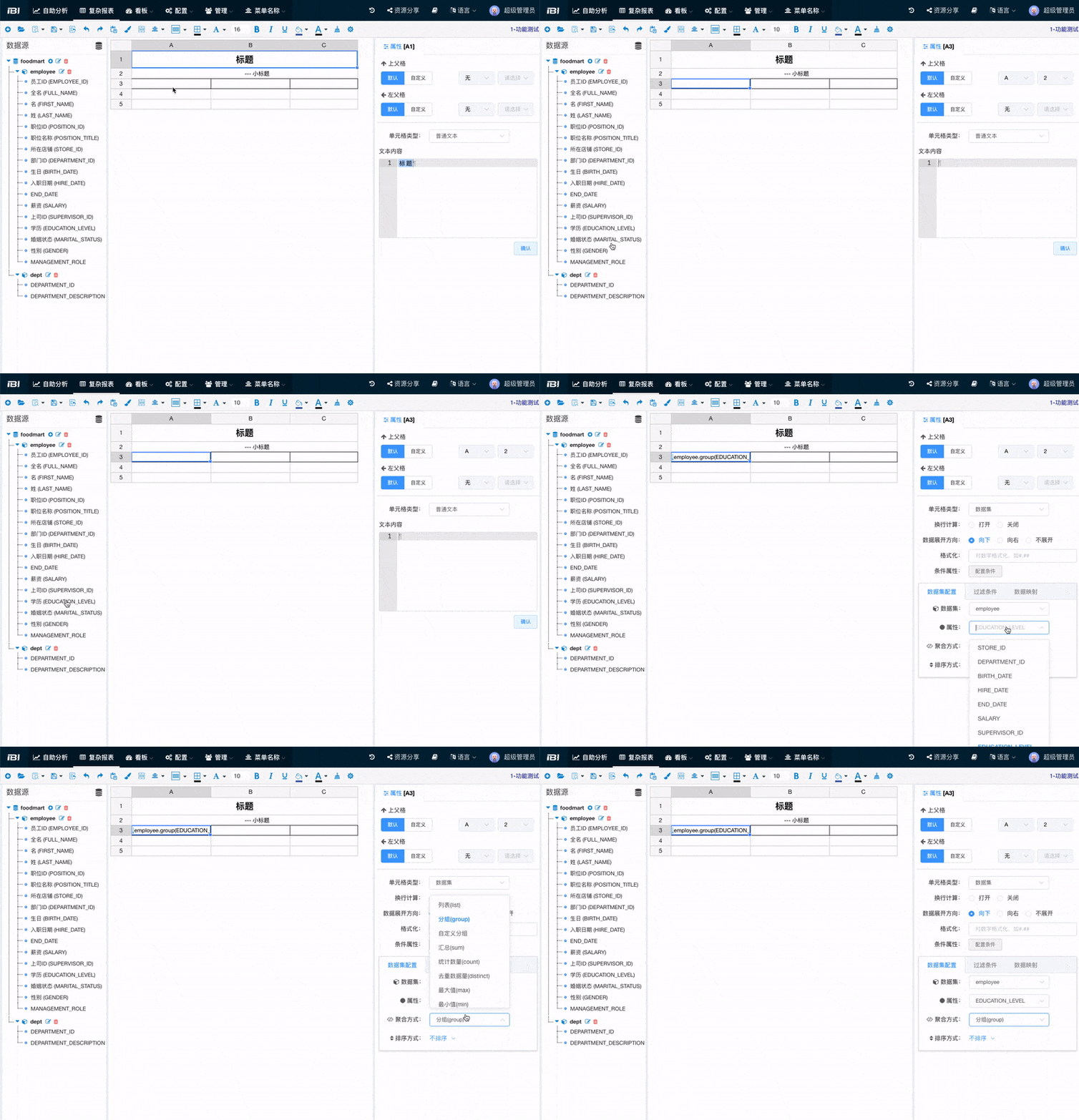
After filling a dataset cell, you can modify its configuration:
- Data Expansion Direction:
- Default: Expand vertically downward.
- Expand horizontally to the right.
- No expansion (multiple values will be concatenated with commas and placed in a single cell).
- Dataset Configuration:
- Aggregation method.
- Sorting method.
- Data filtering.
- Data mapping.
- Formatting.
- Configure conditional properties.
Data Expansion
- Group and Expand Downward

Output Result:
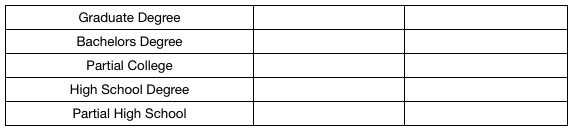
Rule: Parent-Child Cell Data Constraints
If a child cell belongs to the same dataset as its parent cell, the child cell's data will be constrained by the parent cell.

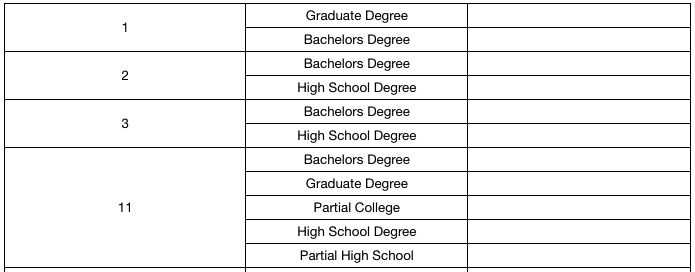
Dataset Cell Calculation Process
For child cell B1 performing group aggregation when DEPARTMENT_ID = 1:
First, use the parent cell DEPARTMENT_ID = 1 to filter all data rows with department ID 1. If data filtering is configured, filter the detailed data first, then perform group aggregation on EDUCATION_LEVEL.
flowchart LR
op1[Parent Cell Constraints] */} op2[Filtering Operation] */} op3[Aggregation Operation]-
Group and Expand to the Right

Output Result:

-
Group Without Expansion

Filter Conditions
Important
Filter conditions for datasets apply to the detailed data before aggregation, not to the aggregated results. From an SQL perspective, this is equivalent to WHERE filtering, not HAVING filtering. The following example explains this.
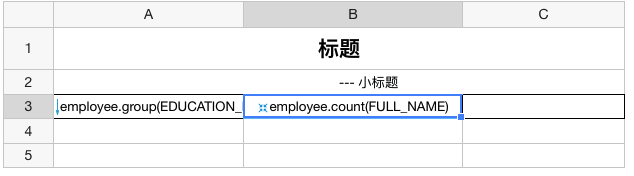
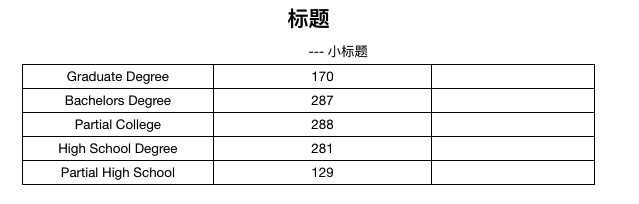
Configure statistics for the number of people by education level without any filter conditions. The result is as follows:
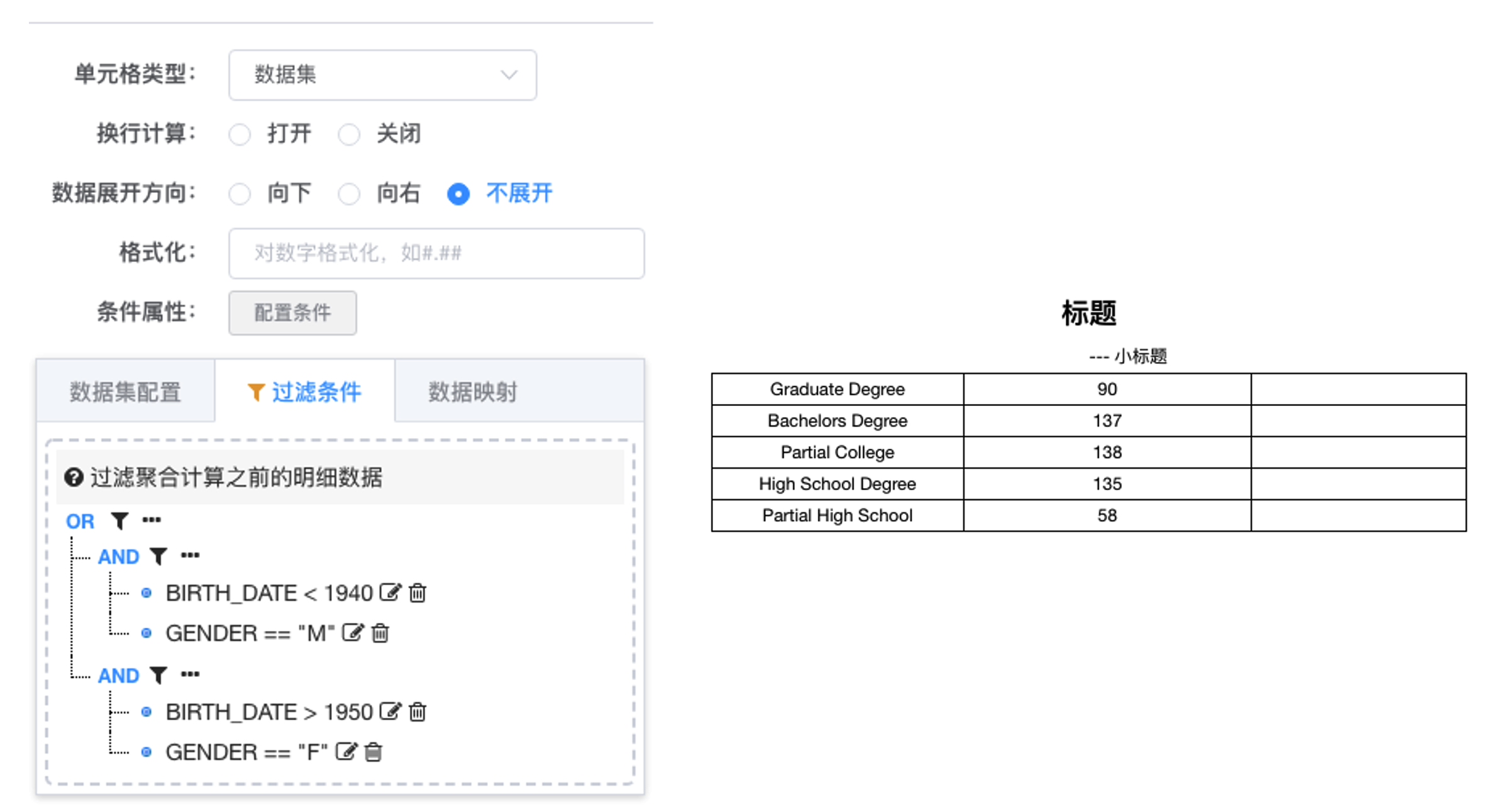
Using the detailed data binding feature, we can apply the following filter to cell B3:
Count males born before 1940 or females born after 1950. Since each record in the detailed dataset contains all attribute values, even though cell B3 is bound to
FULL_NAME, other attributes can still be used in the filter.
Detailed Data Filtering
Detailed Data Filtering
If a filter condition is configured for aggregated cell B3, such as "current value > 200", the output will be all zeros.
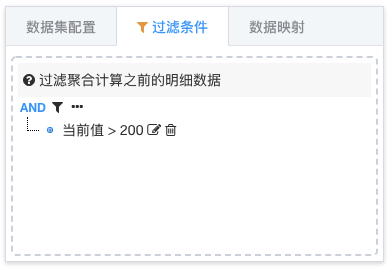
This is because current value > 200 actually executes employee.FULL_NAME > 200 for the bound attribute.
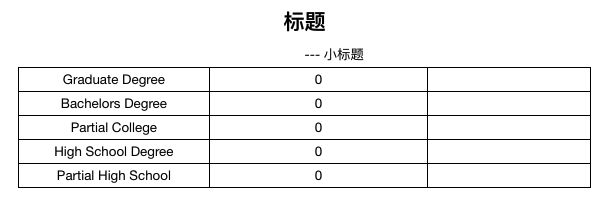
Will the parent cell still display if all child cell data is filtered?
From the example above, even if all child cell data is filtered, the parent cell will still output its value because the parent cell drives the child cells. Even if the child cells have no values, the parent cell will output its own value.
Comparing Attributes Within Detailed Data
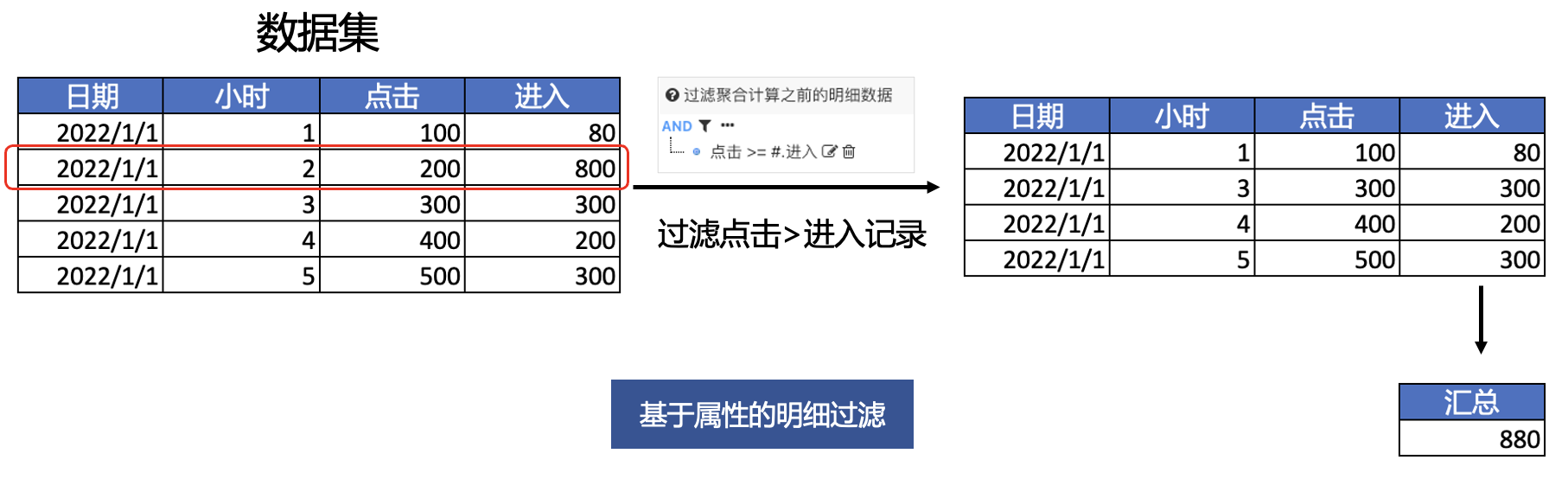
In filter condition configurations, the right value (comparison value) supports attribute expressions #.attributeName, which are used to compare two different attributes within the dataset. As shown below, before summarizing metrics, dirty data where clicks > entries needs to be filtered.
How to Implement Aggregated Value Filtering
How to implement aggregated value filtering or set colors or hide specific values?
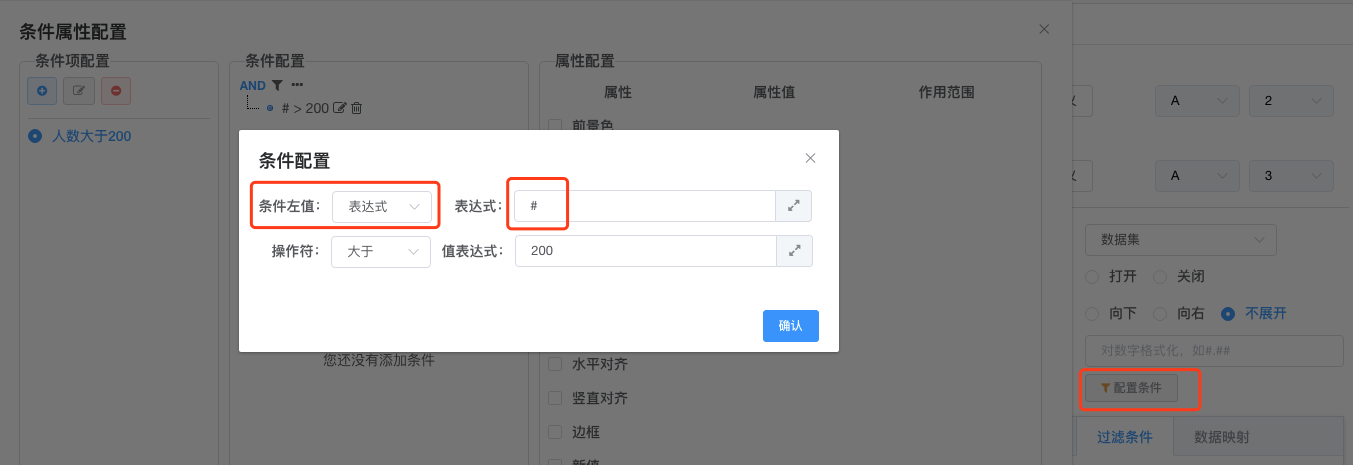
You can configure the cell's conditional properties. Set the left value of the condition to an expression, with the expression content as #, allowing you to obtain the cell's value and make judgments.
The
#expression represents the current cell's content.
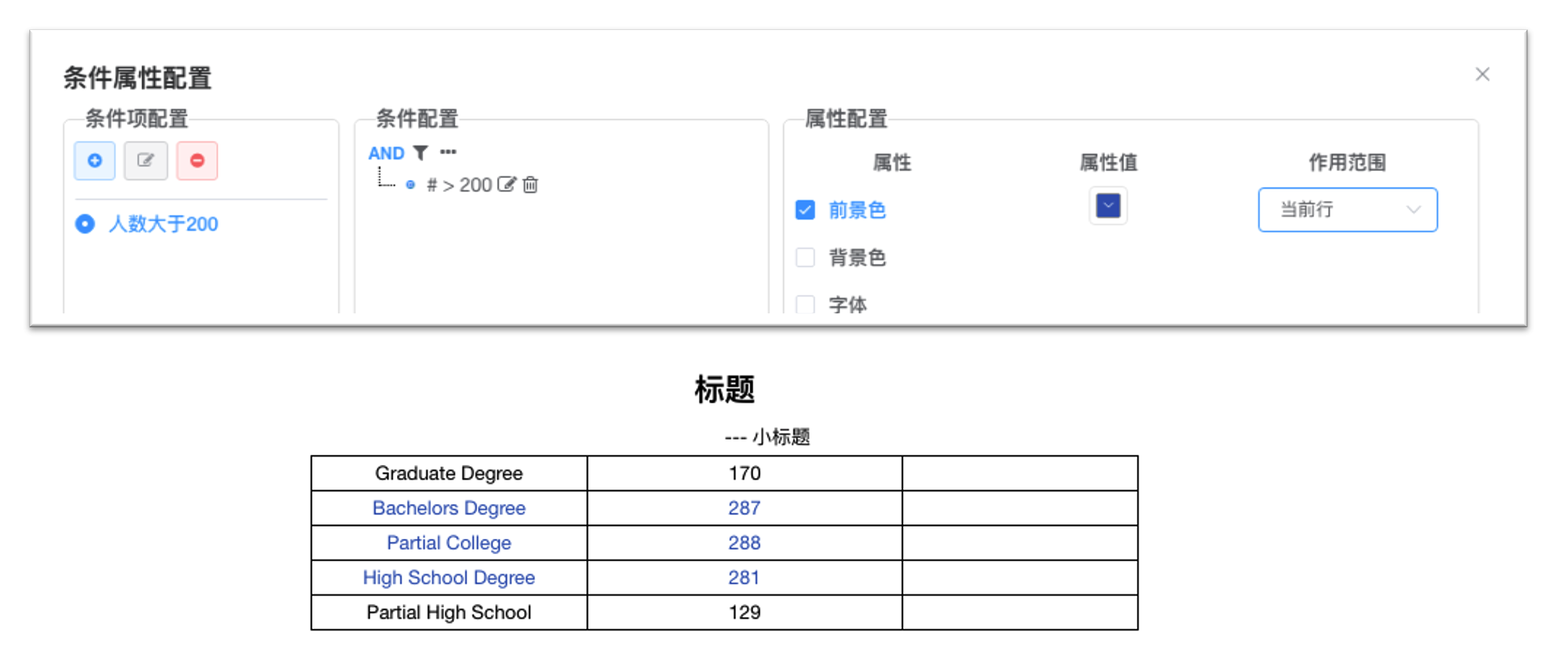
- Set the foreground color (font color) of cells meeting the condition to blue, with the
scopeas current row. The effect is as follows:
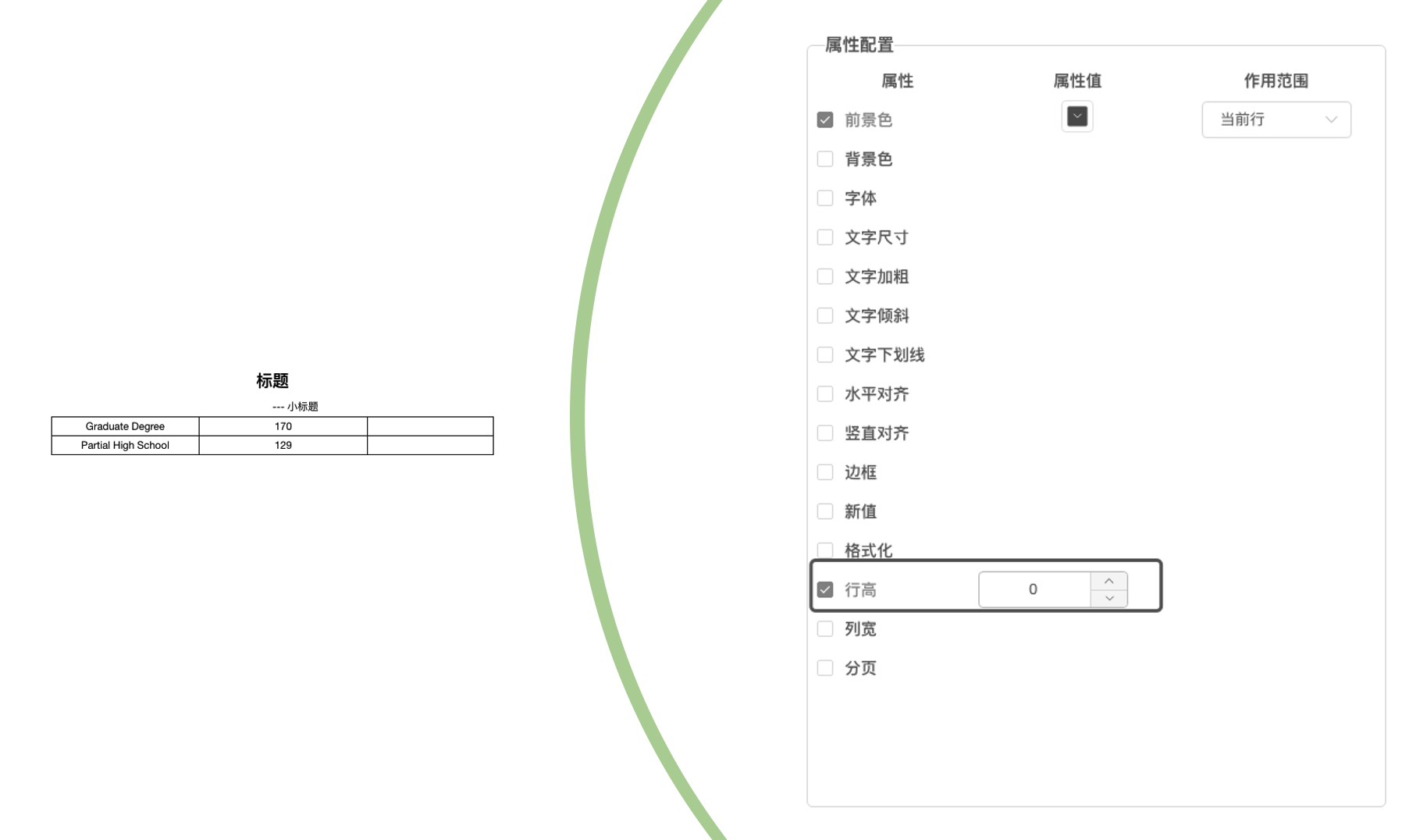
- Set the row height of cells meeting the condition to 0, so the entire row is not output:
Data Mapping
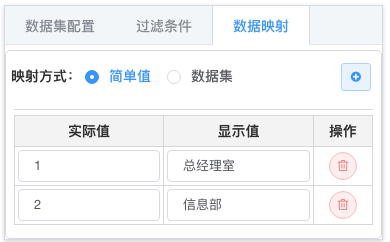
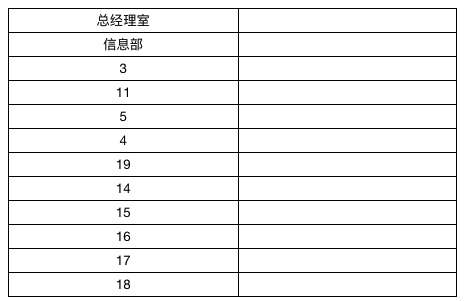
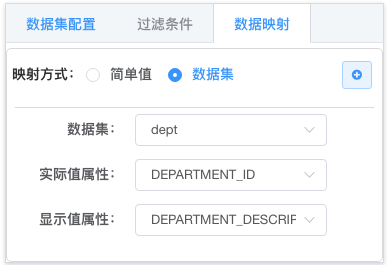
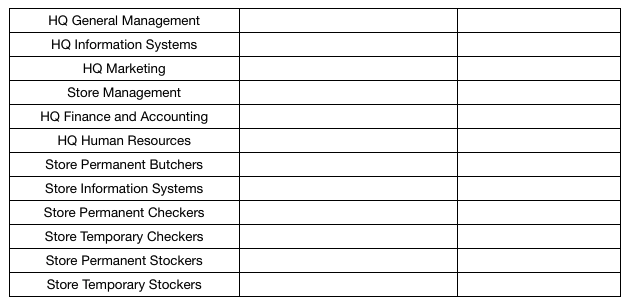
Configure data dictionaries. For example, if the employee dataset only contains department IDs, you can map IDs to department names using data mapping.

-
Simple Mapping
Output Result:
-
Dataset Mapping
Output Result:
Data Association (Cross-Source)
When we have multiple dataset cells with parent-child relationships, as shown in the designer below:
A1: dept.group(DEPARTMENT_DESCRIPTION)
B1: employee.group(EDUCATION_LEVEL)

According to the parent-child cell data constraint principle:
If a child cell belongs to the same dataset as its parent cell, the child cell's data will be constrained by the parent cell.
Cross-Dataset Association
However, in the example above, the parent and child cells belong to different datasets. Without any filtering on the child cell, B2 expansion is not constrained by A1. As shown, the expanded content is identical each time:
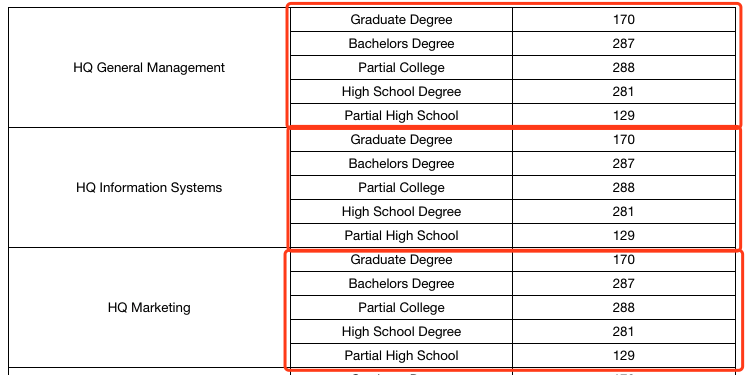
Nevertheless, we can still use the parent-child cell data constraint principle. If B1 runs an expression that belongs to the same dataset as A1, it can obtain the corresponding attribute from A1.
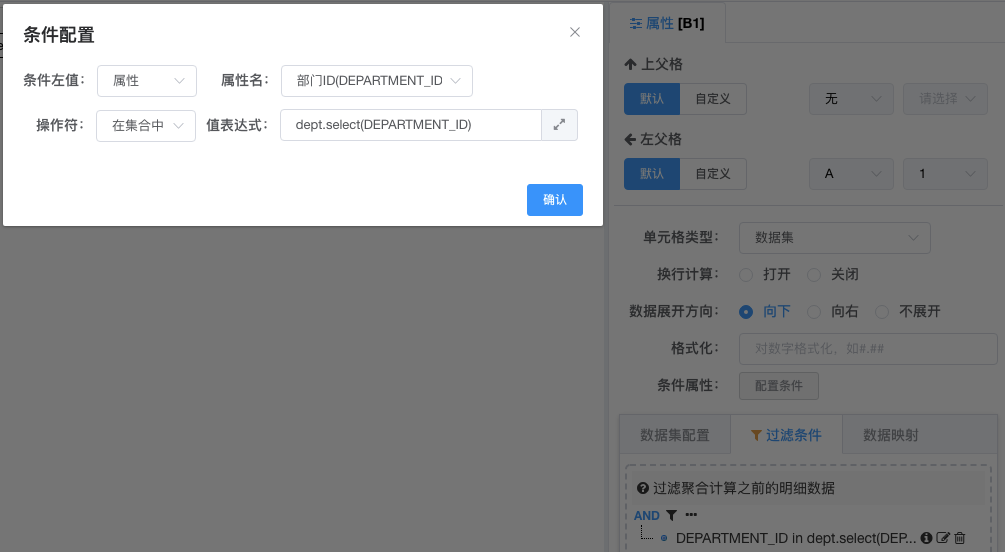
Let's try: Set a filter condition for cell B1, where the department attribute DEPARTMENT_ID in cell B1 (i.e., the department ID in the employee table) is within the set dept.select(DEPARTMENT_ID), achieving association between the two datasets.
For multiple values, use "in set"; for single values, use "equals".
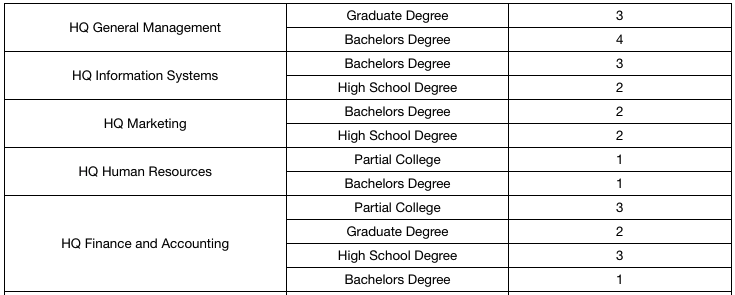
Output Result:
Performance Warning
Dataset association operations are commonly used for associations between heterogeneous data sources. If both datasets are from the same database, it is recommended to perform table associations at the database level for better performance control. Databases have many optimization methods for table associations, which in most scenarios outperform the Report engine.