
Expressions
Write expressions in the report designer — the syntax, operators, and functions available for computing cell values, conditions, and dynamic content.
Expressions
In the process of using reports, it is inevitable to use functions and expressions to implement some data calculations. In Report, many places support writing expressions. For example, most typically, we can change the cell type to "Expression", allowing us to input corresponding expressions and functions in the expression editor below.
Basic Syntax
Similar to general programming languages, expressions also have some basic data types, such as numbers, strings, etc., as shown in the table below:
Keywords are case-sensitive, such as cell coordinate A1, and, or, if, else, case, etc.
| Expression Type | Description | Examples |
|---|---|---|
| Number | Can be an integer or a decimal | 1, 123, 0.121331 - these are all valid numbers |
| String | Strings need to be wrapped in single or double quotes | 'ureport2', "UReport2", 'UReport2 Tutorial' - these are all valid strings |
| Boolean | Boolean values represent yes or no | There are only two boolean values: true and false |
The three basic data types mentioned above can be used alone or combined using "+", "-", "*", "/", "%" for composite operations, as shown in the table below:
| Operator | Description | Example |
|---|
- | Sum of two numbers, or concatenation of two values | 21+31 means the sum of these two numbers, result is 52; "Value: "+331 means concatenation of two values, result is "Value: 331"
- | Difference between two numbers | 21 - 31 means the difference between these two numbers, result is -10
- | Product of two numbers | 3*6, result is 18 / | Quotient of dividing two numbers | 6/3, result is 2; if not divisible, retains 8 decimal places % | Remainder of dividing two numbers | 5%3, result is 2; 6%2 result is 0 and/or | Conditional association symbols | A1 > 10 or B1 == 1 and A1 < 20
Variable Definition
Variables can be defined using var, where the variable value can be a constant or another expression.
var a = 1;
var b = fd1.sum(store_cost)

if (b >0) {
    b
}
Ternary Expression
Almost all languages support ternary expression evaluation. It is concise and clear, allowing conditional judgment with minimal code. The syntax structure of ternary expressions in Report is as follows:
ifCondition ? expr : expr
Like ordinary ternary expressions, the first part is the condition, which can have multiple conditions (connected by and or or). The "?" is followed by the expression part executed and returned when the condition is met, and ":" is followed by the expression part executed and returned when the condition is not met.
| Ternary Expression Example | Explanation |
|---|---|
| A1>1000 ? "Normal Value" : "Low Value" | During expression calculation, first get the value of cell A1, judge if it is greater than 1000, if yes return the string "Normal Value", otherwise return "Low Value" |
| A1>1000 and A1<20000 ? "Normal Value" : "Adjusted Value:"+(A1+100) | Condition part: judge if A1 value is greater than 1000 and less than 20000, if yes return "Normal Value", otherwise return the string "Adjusted Value" concatenated with the result of A1 value plus 100; if A1 is 2000, then return "Adjusted Value: 2100" |
if Judgment
The if judgment expression consists of an if condition judgment part, several optional elseif condition judgment parts, and finally an optional else part. The syntax structure is similar to Java or JavaScript.
Provides code snippet auto-fill template. After the template is filled in, you can use the Tab key to jump the cursor to places that need changing for convenient input.
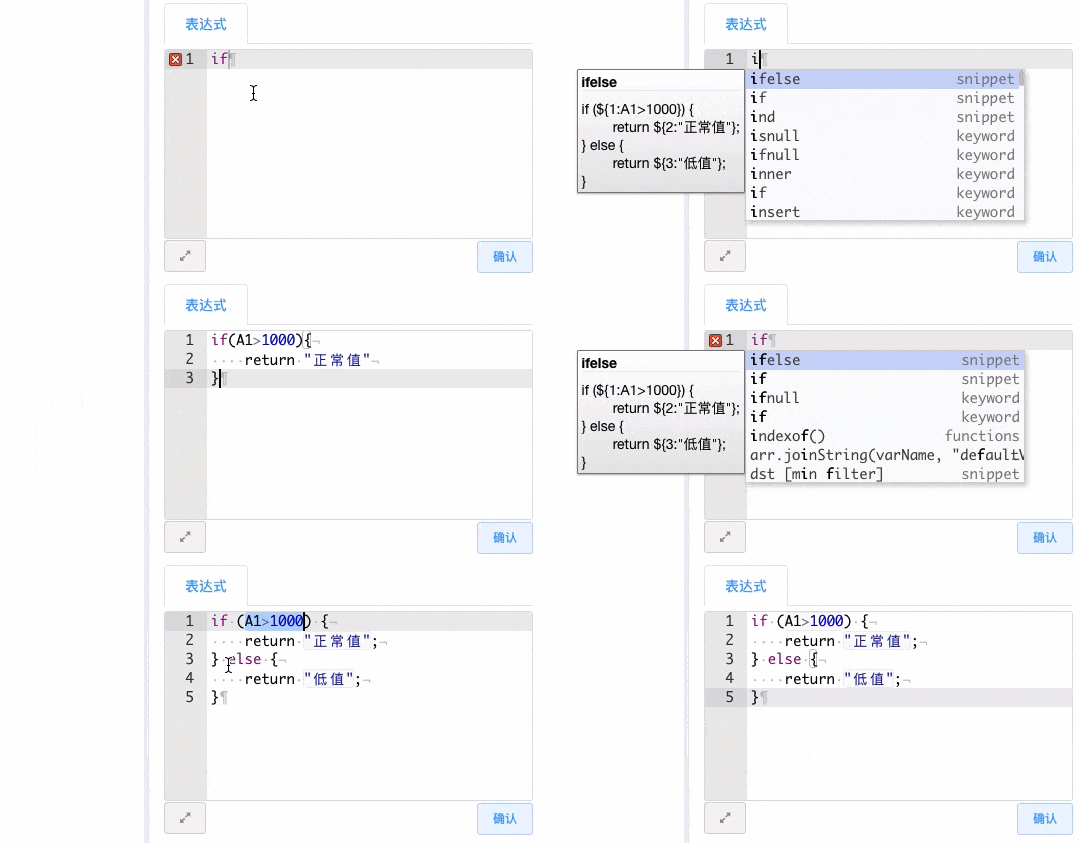
// Determine if the value of cell A1 is greater than 1000; if yes, return the string "Normal Value", otherwise do nothing.
if(A1>1000){
  return "Normal Value"
}
// Determine if the value of cell A1 is greater than 1000; if yes, return the string "Normal Value", otherwise return the string "Low Value".
if(A1>1000){
return "Normal Value"
}else{
"Low Value";
}Note that in if expressions, the return keyword is optional, and adding ';' at the end of a line is also optional, mainly to accommodate the habits of some Java and JavaScript programmers.
// In this example, multiple combined conditions are added to the condition part, along with else if multiple judgments.
if (A1>1000 and A1<20000) {
    return "Normal Value:"+A1
} else if (A1>20000 and A1<40000) {
    return "Super High Value"
} else {
    "Low Value"
}
case Judgment
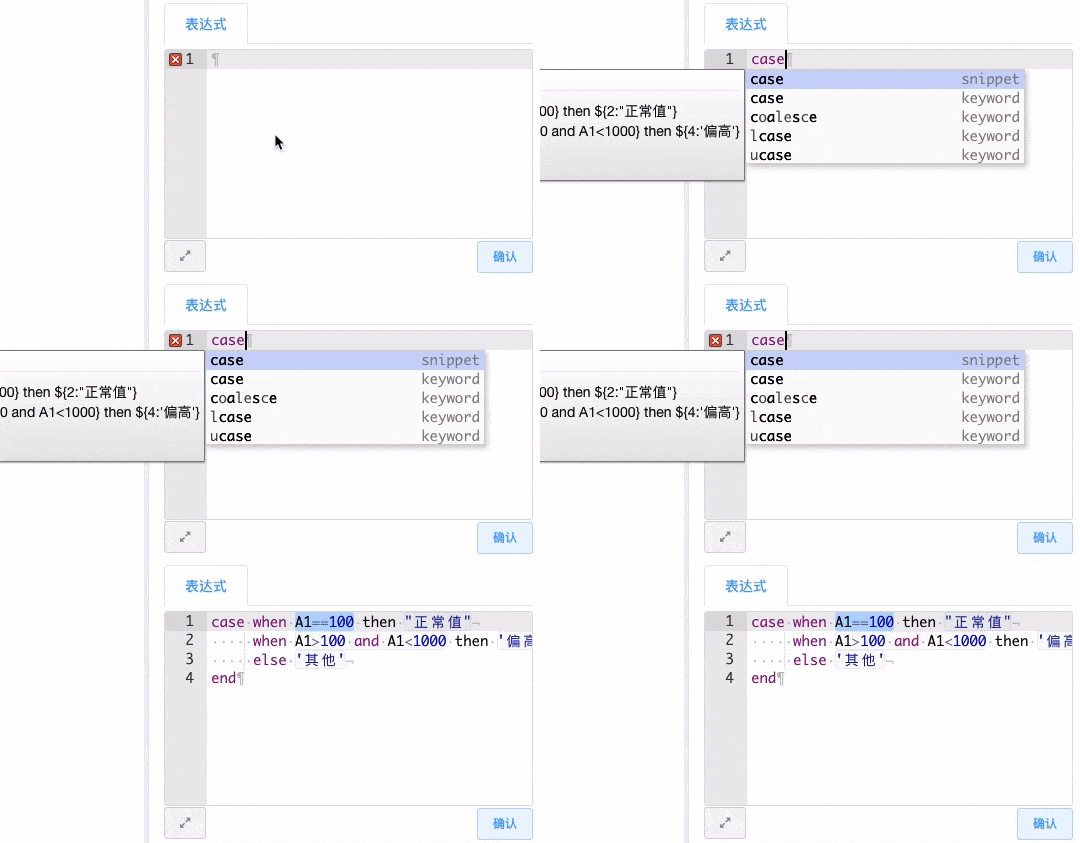
case judgment is consistent with SQL syntax.
case
     when condition then exp
     (when condition then exp)*
     (else exp)?
end
Provides code snippet auto-fill template. After the template is filled in, you can use the Tab key to jump the cursor to places that need changing for convenient input.
Cell Reference
In reports, most calculations are targeted at cells or related to cells. Because cells in reports are mostly bound to data, and data often has multiple rows, a cell after calculation often produces multiple instances, making cell references quite complex.
Same Row/Column Reference Unique Value
In the UReport2 reporting engine, the referenced target cell is calculated relative to the current cell. The reference method is to directly write the cell name in the expression, for example, to reference cell A1, simply write A1, as in the following example:

In the above figure, we input expression A1 in cell D1
Current cell is: D1, target cell is A1
This means to fill cell D1 with the value of cell A1 relative to the current cell D1. The effect after running is as follows:
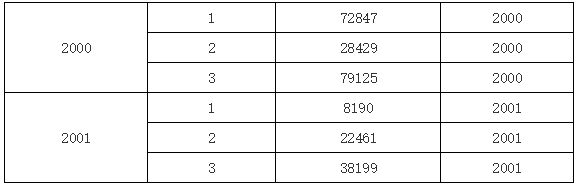
It can be seen that because D1 is a child cell of A1, and cell A1 is bound to grouping data, based on the position of the current D1 cell, the result shown above is produced. If B1 is input in cell D1, the effect after running would be as shown below:
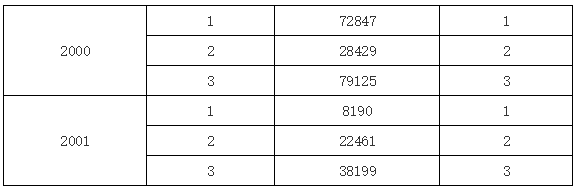
Similarly, if expression C1 is input in D1, then after running, each D1 cell will be filled with the value of the C1 cell located in the same row as D1. The running result is not posted here.
From the above examples, we can see that when a cell's expression references a target cell, it first determines whether the target cell and its own cell are in the same row or column; if yes, it directly takes the value of the target cell on the corresponding row or column.
Same Row/Column Reference Multiple Values
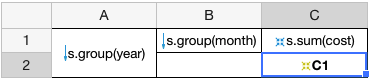
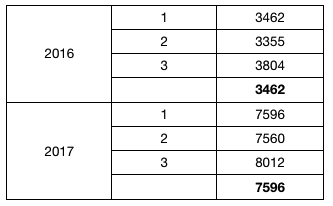
Because C1 is the top parent of C2, it will directly take the value of the top parent cell in the same column. However, C1 has multiple values. At this time, the output is as follows:
Target Cell Retrieval Principle
From the above example, it can be seen that when the current cell and target cell are in the same row/column, if the target cell has multiple values, the first one is taken.
Not Same Row/Column
What is the situation if the current cell and the target cell are not in the same row or column? Let's look at the next example.

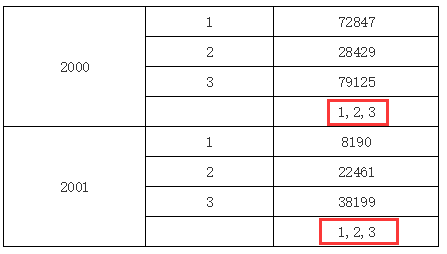
In the above example, we input B1 in the expression of cell C2, indicating to take the value of cell B1. However, cell B1 is not in the same row or column as C2, and cell B1 expands to have multiple values. But both cell B1 and cell C2 share a common parent or indirect parent A1 (the left parent of cell C2 is B2, and the left parent of cell B2 is A1, so A1 is an indirect left parent of cell C2). Therefore, it will take all B1 values under their common parent A1. The running result is shown below:
Output of Multiple Values
If more than one value is retrieved, outputs are separated by "," when displayed, as shown above.
Target Cell Retrieval Principle
From the above example, it can be seen that when a cell expression retrieves target cell values, if they are not in the same row/column, it takes all target cells that share a common parent with the current cell.
If they share a common top parent or common left parent, then take the target cells that are the intersection of the common top parent and common left parent; if they do not share a common parent, then take all target cells after iteration.
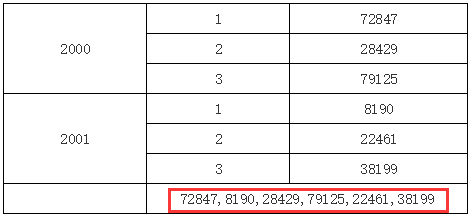
Look at the following report example:
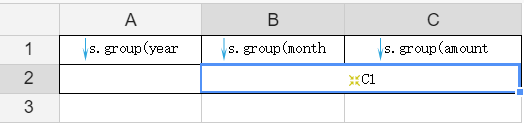
In the above example, C1 is input in the expression of cell B2. Because B2 and C1 are not in the same row or column and do not share a common parent, B2 will take all values of cell C1, as shown below:
Changing Parent Cell to Achieve Cell Value Retrieval
The so-called same row/column when retrieving values without modifying the parent is actually the default parent-child relationship. Target cell value retrieval is affected by the parent cells of both the current and target cells.
Therefore, we can change the top or left parent of the current cell so that the current cell and the target cell are under a specific parent, thereby changing the value range.
Summing target cells by modifying the parent of the current cell
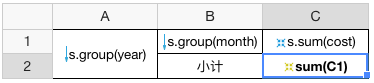
Simple Principle
Modify the parent of the current cell to be consistent with the parent of the target cell to sum the target cells. In the above example, we want to sum C1 for each year. C2 and C1 share a common year left parent, so the left parent does not need to be modified. The top parent of C1 is none, so we modify the original top parent of C2 to none.
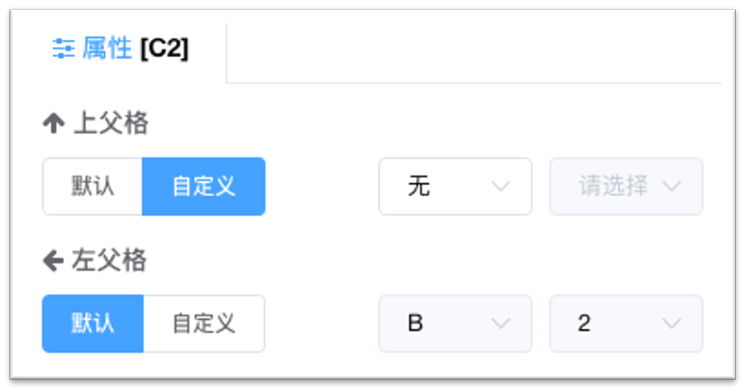
Result is as follows:
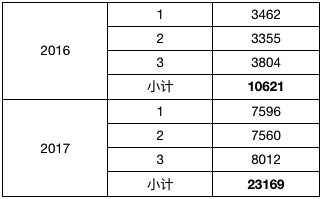
Special Expressions
# Expression
# expression represents the content of the current cell.
Attribute Filtering for Cell Detail Data Rows
The Right Value (Comparison Value) in filter condition configuration supports attribute expression #.attribute_name, used to configure comparisons between two different attributes in a dataset, as shown in the figure below. Before counting metrics, dirty data where click count > entry count needs to be filtered, and then aggregated.
Note
# can also be replaced with the dataset name, e.g., clk.entry.
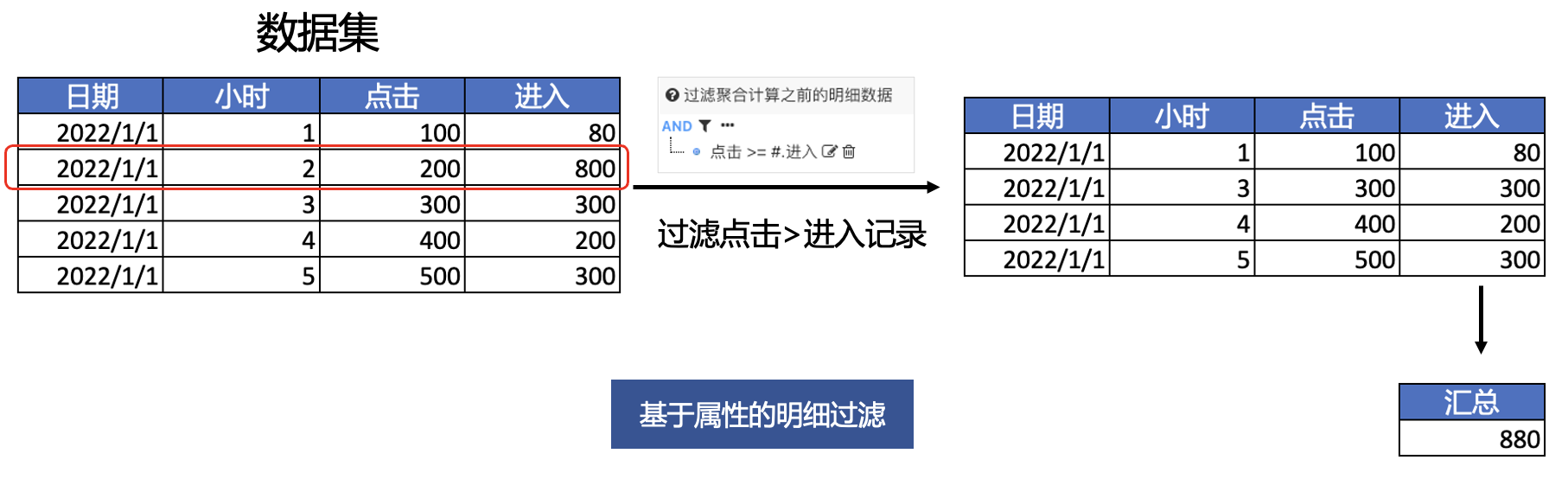

Expression implementation:
clk.sum(entry, click >= entry)
or
clk.sum(entry, clk.click >= clk.entry)
& Target Cell Name
Cell sequence number, using "&target cell name" to mark the sequence number after the target cell is expanded; the current cell must be a child or indirect child of the target cell.
Cell Coordinates
To achieve more complex cell references, UReport2 introduces the concept of cell coordinates. Cell coordinates are also calculated relative to the current cell, following the principle of prioritizing same row, same column, or common parent cells as introduced above.
IBI has made some adjustments based on UReport2 syntax.
cell_name[left_parent_coordinate(, left_parent_coordinate) ; top_parent_coordinate(, top_parent_coordinate)]{condition...}
Parent Coordinate Syntax
parent_cell_name@i, where i is an integer, indicating the ith element (counting from 1) after the parent cell expands. Two special syntaxes:
@inot written or i=0, takes all parent cell corresponding cells, can be used to calculate proportion.@!-irelative coordinate can be used to calculate chain ratio.
Left parent coordinates may be omitted, allowing offset calculations without a left parent.
cell_name[;top_parent_coordinate(, top_parent_coordinate)*]{condition...}
Indicates conditional filtering on the cells retrieved via coordinates; the condition part is optional.
Examples
C1[A1]
All C1 child cells corresponding to the expanded values of A1 relative to the current cell, commonly used for categorical statistics.
C1[A1@!-1]
Relative offset coordinate: All C1 child cells corresponding to the expanded value of A1 shifted up one cell relative to the current cell, commonly used for chain ratio statistics.
C1[A1@2, B1@1]
When finding C1, first find the second cell after cell A1 expands; then find the first cell after the B1 cell under the second A1 expands; then find the C1 cell corresponding to this B1 cell.
C2[A1@2, B1@2; C1@3]
When finding C2, first find the second cell after cell A1 expands; then find the second cell after the B2 cell under the second A1 cell expands; then based on the second expanded B2 cell, find its left child cells named C2; then find the third cell after cell C1 expands; then look at the C2 cell under it, and take the intersection of C2 cells.
C2[A1@2, B2@2]{C2>10 and C2<100}
Means take the second cell after A2 cell expands; then take the second cell after the B2 cell under it expands; then take all C2 cells under B2; finally perform conditional filtering on the retrieved C2 cells, only taking all C2 cell values greater than 10 and less than 100.
Let's look at a report template as follows:
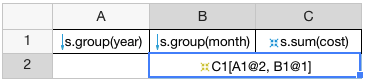
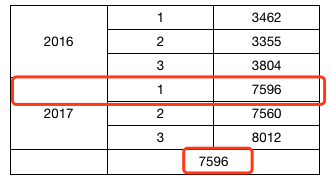
In the above report template, input C1[A1@2, B1@1] in the expression of cell B2. This means take the value of the C1 cell corresponding to the first expanded cell of B1 under the second expanded cell of A1. After running, we can see the effect as shown below:
Chain Ratio
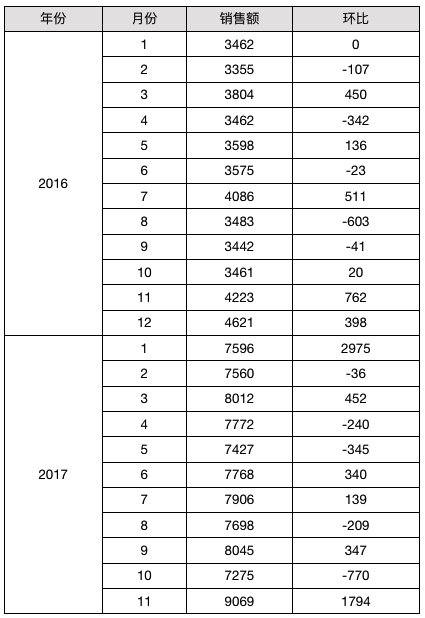
Report template as follows:

C2 - C2[B2@!-1]
C2[B2@!-1] takes the C2 cell corresponding to the B2 cell one cell above (exclamation negative value indicates upward displacement) relative to the current cell's B2 cell.
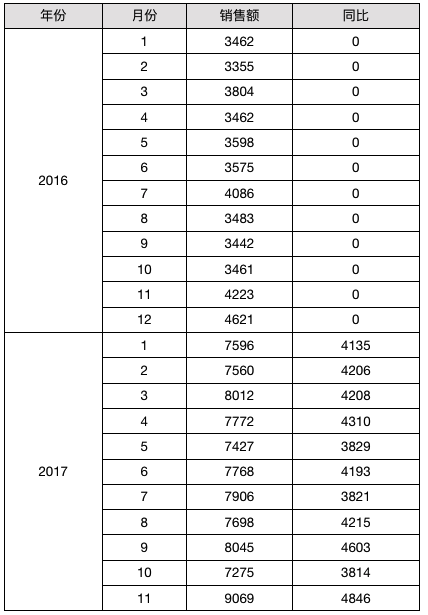
Year-on-Year
Report template as shown below:

In the above template, cell D2 first takes the value of cell C2 in the same row, then uses cell coordinates to first get the previous A2 cell record (@-1 indicates coordinate upward shift) of the A2 cell in the current D2 cell's row, then takes the C2 cell under this A2. However, since there are multiple C2 cells under it, a condition B2==$B2 is added here. The first B2 here represents the value of B2 corresponding to the current cell's row, and $B2 represents the value of the B2 cell corresponding to the C2 cell after coordinate positioning. The condition is that they must be equal, essentially meaning the months are equal. This achieves the year-on-year comparison we want.
About $B2
Adding a $ symbol before a cell name means taking the value of the cell relative to the target cell, often used in conditional comparisons. For example, in C2[A2@!-1]{B2==$B2}, $B2 refers to the value of the B2 cell corresponding to the retrieved C2 cell.
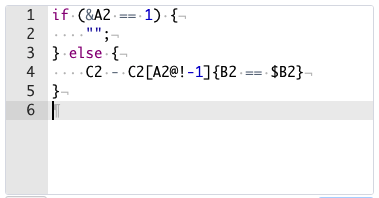
Fill Blank for First Year
Can be achieved by rewriting the expression:
About Using & Marker
When using "&cell name" to mark the sequence number after the target cell expands, besides the points described above, also note that sequence numbering will be based on their common parent. If they share a common parent, then numbering will be based on the count of target cells within this parent. This was demonstrated in the earlier video tutorial on the report calculation model when implementing a detail-type master-detail report to number detail data.
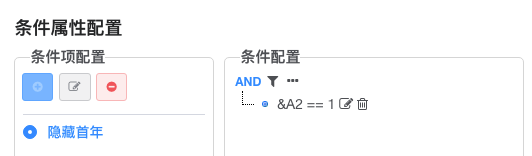
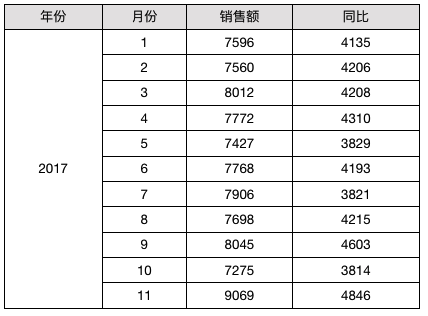
Hide First Year
Can be configured via D2's Conditional Property configuration, &A2==1, row height 0 for the row corresponding to the first expanded element of A2.
Effect as follows:
Accumulation
Report template as follows:

The expression corresponding to cell D2 is:
C2 + D2[B2@!-1]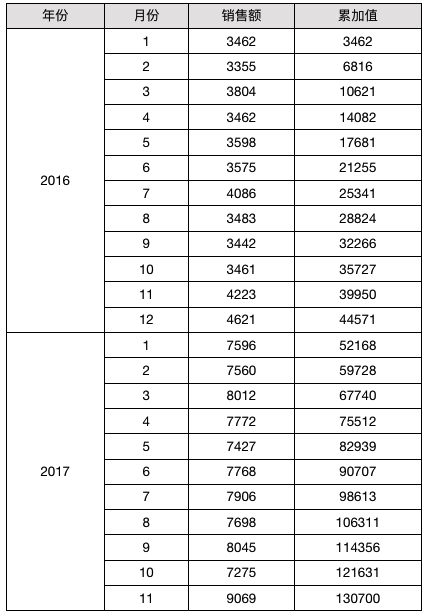
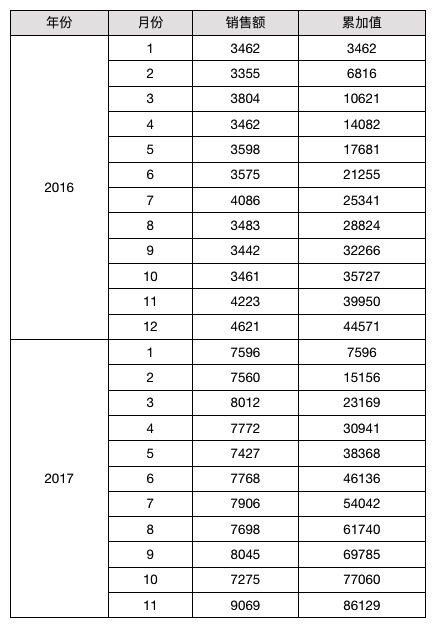
Accumulate by year grouping:
-- Reset accumulation when new month expansion coordinate is 1
if (&B2 == 1) {
    return C2
} else {
    return C2 + D2[B2@!-1]
}
Result as follows:
Proportion
Used to count the sum of all data in column C2.
| Example | Explanation |
|---|---|
| C2/sum(C2[]) | Total proportion |
| C2/sum(C2[A2, B2]) | Proportion by A2 + B2 classification |
| C2/sum(C2[]{A2 == $A2 and B2 == $B2}) | Proportion by A2 + B2 classification |
Report template as follows:

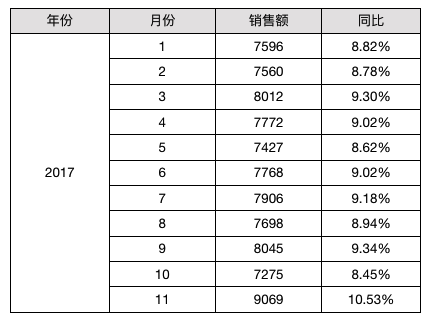
Result:
In the above accumulation denominator, after retrieving the cell array corresponding to the group, the sum() function is used. For specific function-related introductions, please refer to the Functions chapter.
Dataset Expressions
Dataset cells are actually also a type of expression. They also allow us to bind cells to dataset fields by writing expressions in cell expressions. The syntax structure is as follows:
dataset_name.aggType(field_name[, condition, sorting_method])
The aggregation methods are basically the same as those seen in the property panel after double-clicking to add field binding. Specifically, there are the following types.
Aggregation Methods/aggType:
select, group, sum, avg, count, min, max, distinct
| Example | Explanation |
|---|---|
| ds1.aggType(username) | Take all username field information from dataset ds1 |
| ds1.aggType(username, age > 18) | Add filtering |
| ds1.aggType(username, indexof(dst.name, 'a') > -1) | If attribute in filter condition needs function processing, the dataset name must be added to the attribute |
| ds1.aggType(username, age > 18, desc) | Add sorting; sum, avg, count, min, max, distinct output single values and do not need sorting |
| ds1.aggType(username, age>18 and age<60, asc) | Multi-condition filtering |
Attribute Function Judgment
If the attribute in the filter condition needs function processing, the dataset name must be added to the attribute.
ds1.aggType(username, indexof(dst.name, 'a') > -1)