
Text Dataset
Build a dataset from plain text, Excel, or CSV files — uploaded or read from a path. Covers data type detection, header rows, and advanced parsing options.
Easy Pivot supports reading plain text, Excel (xls/xlsx), and CSV type text files.
Note
Do not attempt to rename an Excel file by changing its extension to .txt or .csv, as this will cause errors during the reading process.
File Path
Upload File
Easy Pivot stores uploaded files in the built-in File Storage, allowing the same file to be shared across multiple datasets without requiring repeated uploads.
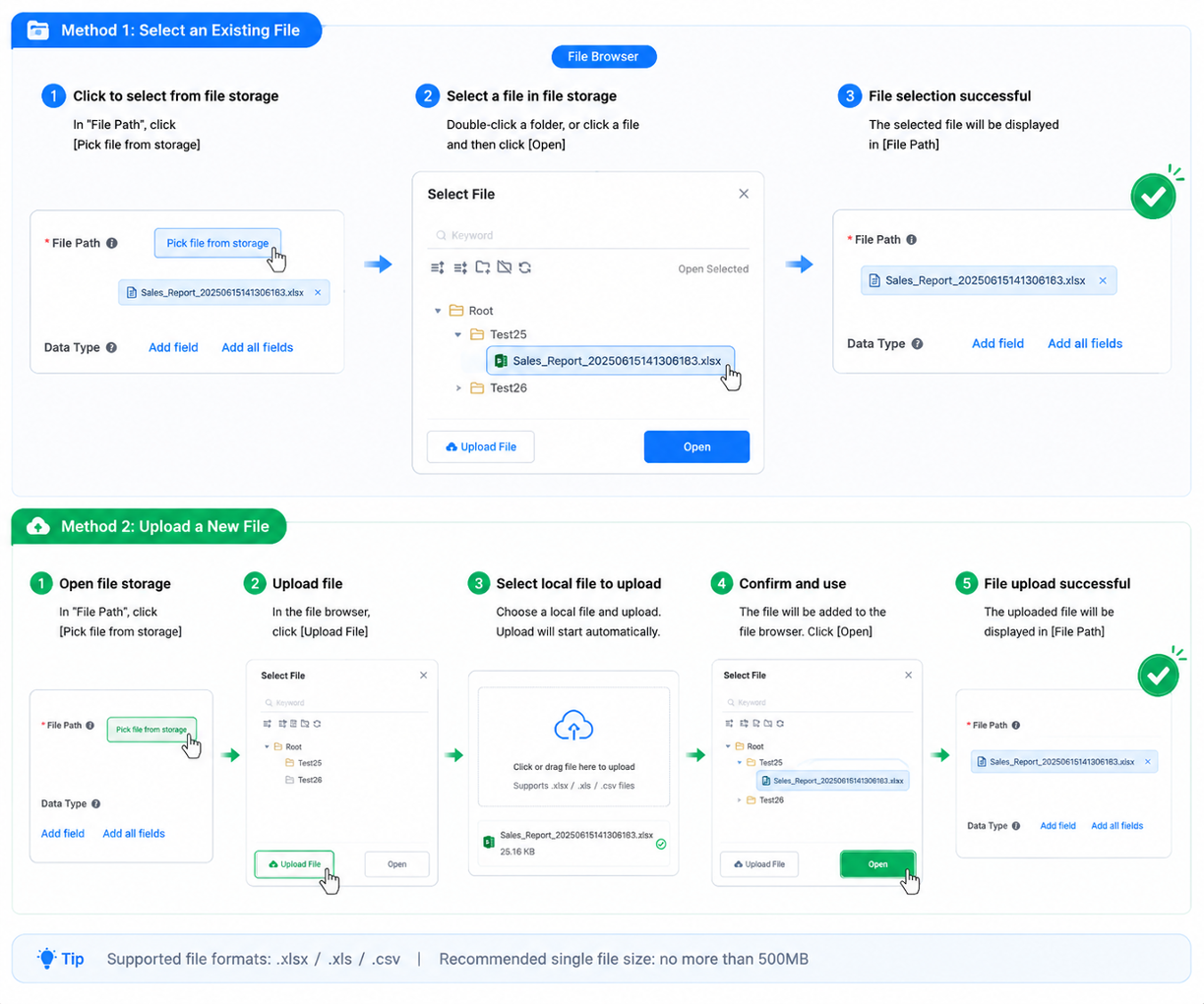
Select an Existing File
If the file has already been uploaded:
- Click Pick file from storage.
- Browse the File Storage and select the desired file.
- Click Open.
- The selected file will appear in the File Path field.
Upload a New File
If the file has not been uploaded yet:
- Click Pick file from storage.
- In the file browser, click Upload File.
- Select a local
.xlsx,.xls, or.csvfile. - Wait for the upload to complete.
- Select the uploaded file and click Open.
- The file is now linked to the current dataset.
Tip
Supported formats: .xlsx, .xls, .csv
Recommended maximum file size: 500 MB
File Storage and Dataset References
Uploaded files are stored in the File Storage, not inside individual datasets.
When a dataset selects a file, it creates only a reference to that file.
This design provides several benefits:
- Upload a file only once.
- Reuse the same file across multiple datasets.
- Keep dataset configurations lightweight.
Note
Removing a file from a dataset does not delete the uploaded file from the File Storage.
Only the reference is removed. The physical file remains available for other datasets and future use.
Reuse Files Across Multiple Datasets
A single uploaded file can be referenced by multiple datasets simultaneously.
For example:
| Dataset | Referenced File |
|---|---|
| Sales Analysis | Sales_Report_2025.xlsx |
| Regional Dashboard | Sales_Report_2025.xlsx |
| Executive KPI Report | Sales_Report_2025.xlsx |
Since all datasets reference the same physical file, duplicate uploads are unnecessary, reducing storage usage and simplifying file management.
Data Type
Without configuration, text data is loaded into the cache database as strings by default. Field data types can be configured via the Data Type settings. Field dropdown options become available after data is loaded.
Advanced Configuration
| Configuration Item | Description |
|---|---|
| Encoding | Affects the reading of Chinese text. Default file encoding is UTF-8. |
| Skip Rows | Whether to skip the first few rows. Configure when the first row contains headers. |
| Separator | Default separator is comma ",". For other separators in text files (e.g., tab \t), configure accordingly. |
| Field Names | Default assumes the first row contains field names. If the first row read does not contain field names, they can be set via configuration. |
Database Dataset
Define a dataset with a SQL query against any JDBC source. Covers query caching, variables in queries, CTAS and WITH subqueries, and graphical modelling.
HTTP Dataset
Turn any JSON HTTP API into a dataset. Configure the request path and parameters, then map the JSON response with the object or array parser.