
Calculate Column
Calculated columns derive new fields from existing ones at query time. Covers syntax, adding calculated fields to a model, field references, and lazy evaluation.
Calculated Columns (Derived Columns) are new columns generated by calculations based on original fields or other calculated fields.
During data analysis, if the base fields do not include all the fields that needed to answer a question, calculated fields can be added. The added calculated fields will participate in calculations as part of the original detailed data fields.
Scenarios
-
General Field Type Conversion
- Date Format Conversion: Convert a date field from string format to date format. For example, convert "20230809" to "2023-08-09".
- Numeric Conversion: Convert text-formatted numbers to actual numeric types, such as converting "1000" to integer 1000 or "3.14" to a floating-point number.
- Currency Conversion: Convert a currency value from one currency unit to another, e.g., from USD to EUR.
-
Operations Between Fields
- Sales Amount Calculation: Calculate sales amount by multiplying unit price and quantity (Sales Amount = Unit Price * Quantity).
- Discounted Price: Calculate the final price after applying a discount, e.g., Final Price = Original Price - (Original Price * Discount).
- Time Difference Calculation: Calculate the difference between two date or time fields, such as project completion time or order processing time (Processing Time = End Date - Start Date).
-
Logical Judgments
- Categorization: Classify data based on specific conditions, e.g.,
CASE WHEN Age >= 18 THEN 'Adult' ELSE 'Minor' END. - Score Calculation: Score records based on multiple conditions, such as calculating a customer's credit score or a product's quality rating.
- Status Marking: Add status markers to records based on business rules, e.g., mark as "Out of Stock" if inventory falls below a certain threshold.
- Categorization: Classify data based on specific conditions, e.g.,
-
Aggregated Fields
- Cumulative Sum: Calculate the cumulative sum of a column, e.g.,
SUM(Sales) OVER (ORDER BY Date)for analyzing sales trends. - Ranking: Use
ROW_NUMBER()orRANK()functions to rank records, e.g., ranking sales personnel by sales volume. - Partitioned Sum: Use
SUM(Sales) OVER (PARTITION BY Region)to summarize sales by region.
- Cumulative Sum: Calculate the cumulative sum of a column, e.g.,
Usage Notes
Usage Notes
For JDBC data sources, aggregated calculated fields require database support for window functions. Most common databases, except for MySQL versions prior to 8.0, support window functions. Currently, supported data source categories are Relational Databases, Text, HTTP, and Online Sheets. Elasticsearch and MongoDB are not yet supported. Additionally, for relational databases using aggregated calculated fields, certain database version requirements apply. Special Reminder: MySQL requires version 8.0 or higher. For versions below 8.0, aggregated-level calculated fields can use LOD FIXED expressions to achieve the same effect. To check your MySQL version, use the following query:
SELECT VERSION()Adding Calculated Fields
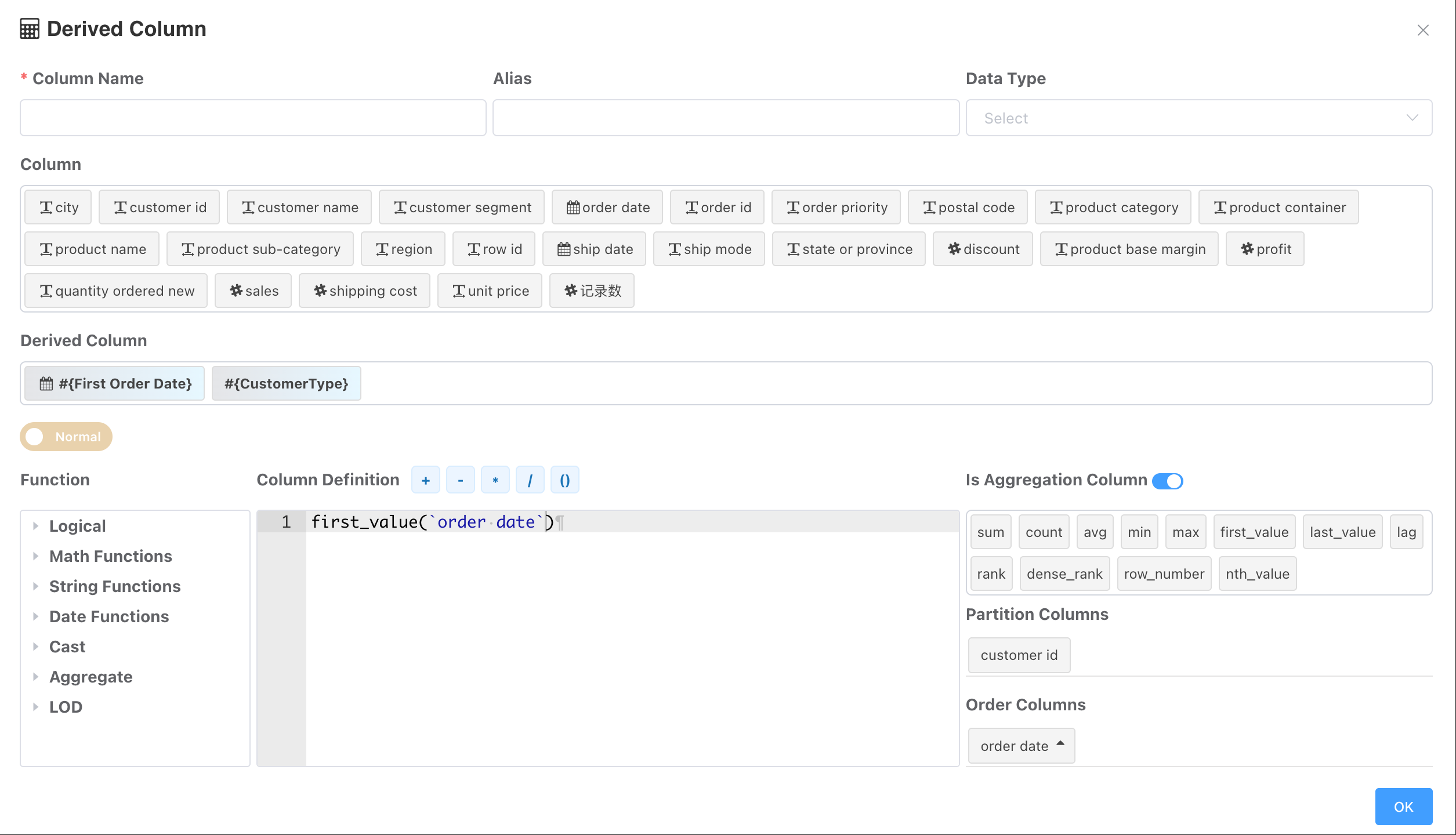
In the Calculated Fields section below the Raw column field list, click the plus sign to add a calculated field.
Graphically define ordinary calculated fields and window function calculated fields.
The calculated field editor includes:
- Field Naming: Required; equivalent to the database table field name. Supports Chinese naming.
- Field List: The original field list. Clicking a field inserts it into the field definition editor.
- Calculated Field List: Other calculated fields. If the current field is an aggregated type calculated field, it cannot reference other aggregated type calculated fields.
- Field Definition: The expression defining the calculated field.
- Aggregated Field Toggle: Switch whether the field requires aggregation.
- Aggregation Function List: Common aggregation functions. Clicking a function inserts it into the field definition editor.
- Grouping Field Area: Drag zero or more original fields as grouping fields. If no fields are dragged, the aggregation is over the entire table.
- Sorting Field Within Groups: Drag original fields for sorting within groups. Note: If using sum, count, or avg, the calculated value will become a cumulative value after sorting.
- Mode Toggle: Normal mode and Advanced mode. In Advanced mode, you can define calculated fields using pure SQL scripts, which can be either ordinary calculated fields or aggregated calculated fields with window functions.
- View Field Values: After defining the calculated field, click OK to close the window. View the calculated field values in the preview query in the dataset editor. Aggregated calculated fields have higher overhead; preview may be slower than original data preview when the data volume is large and there are multiple aggregated fields.
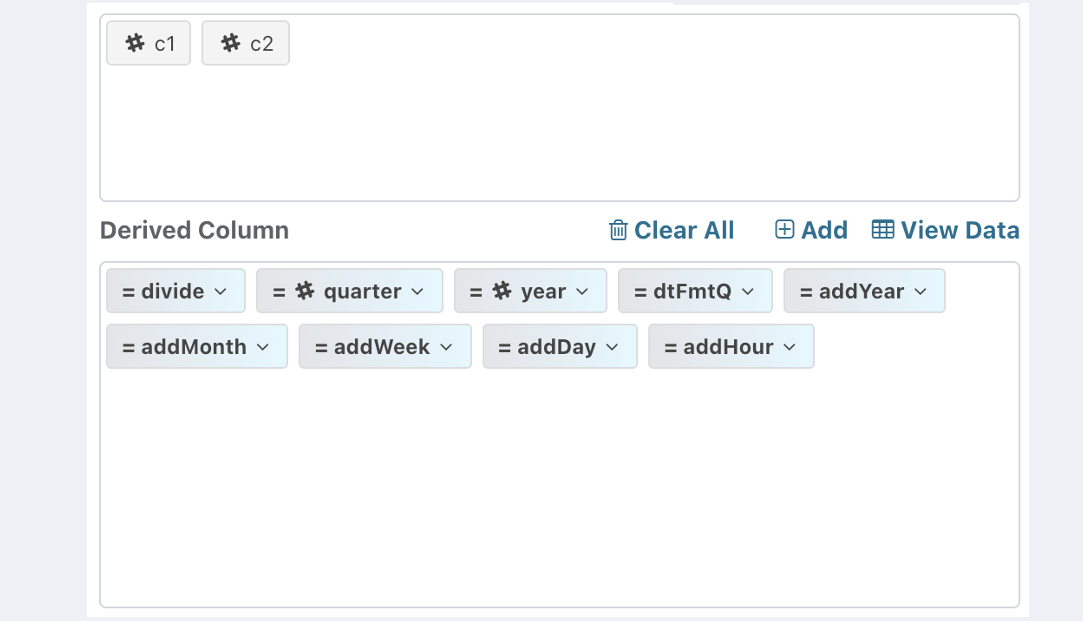
Add Fields to Model
Adding to the Model
After defining a calculated field, like ordinary fields, it must be dragged and added to the dataset model.
- After dragging to a dimension, you can edit the dimension node to set its original data type.
- For date-type calculated fields dragged to the model, you need to edit the dimension node and set the original data type to Date.
Cal-Field Ref
CASE
     WHEN #{First Order Date} = `order date` THEN 'New Customer'
     ELSE 'Returning Customer'
END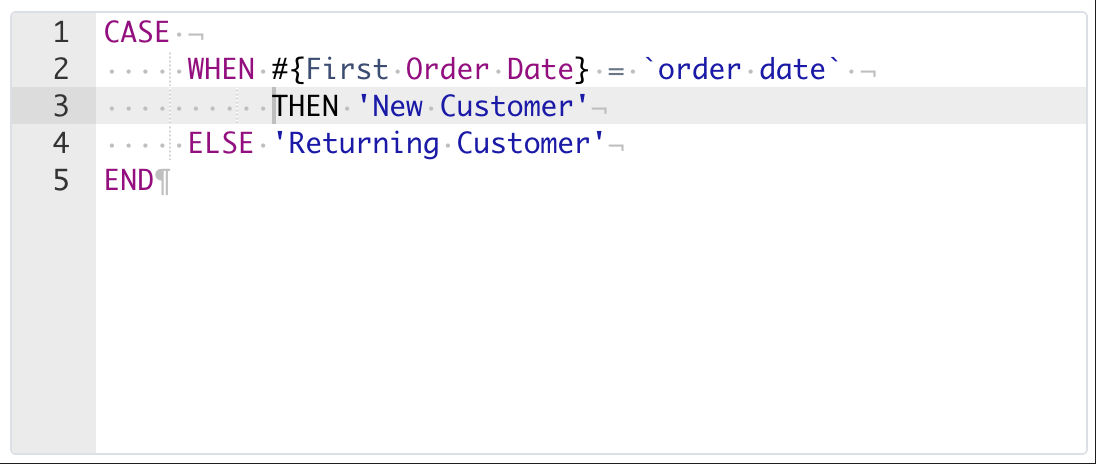
Lazy Calculation
Only calculated fields used in the analysis will be constructed in the query, avoiding unnecessary computational overhead.
Supporting Features
You can use calculated fields in Predefine filter group, dataset summary expression field;
Q&A
-
Q: I use SQL datasets; I can design these calculated fields in minutes with SQL. Do I still need to use calculated fields?
A: For non-aggregated fields (not requiring window functions), you can add them directly in the dataset SQL. However, for aggregated calculated fields, the BI engine dynamically decides whether to construct the query based on whether the field is used in the analysis, offering better performance compared to adding aggregated fields directly in SQL. Additionally, if there are operations between multiple calculated fields, using references between calculated fields can reduce SQL writing workload, such as using aggregated fields in CASE WHEN statements.
-
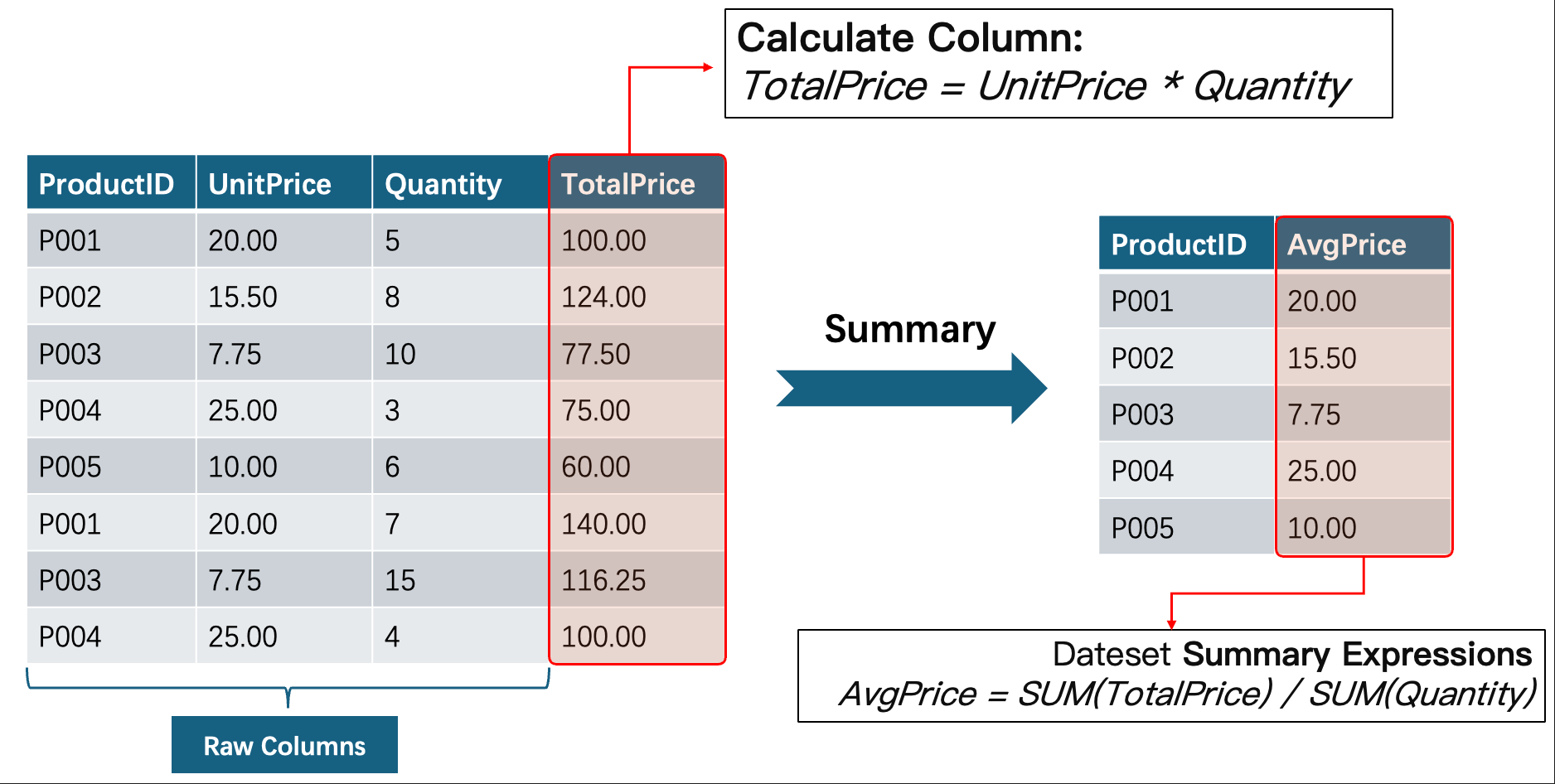
Q: What's the difference between calculated fields and dataset summary expression fields?
A: Dataset summary expressions are used for operations between fields after aggregation results, while calculated fields operate at the detail data level before aggregation, effectively adding columns to the original table.
-
Q: Which types of data sources support calculated fields?
A: Currently supported data source categories are Relational Databases, Text, HTTP, and Online Sheets. Elasticsearch and MongoDB are not yet supported. Additionally, for relational databases using aggregated calculated fields, certain database version requirements apply. Special Reminder: MySQL requires version 8.0 or higher.
Unified Functions
For user convenience, the BI platform provides a set of unified calculation functions. For details, please refer to Union Functions, for example:
YEAR(dt) -- Gets the year from a dateLOD FIXED
- LOD FIXED level of detail expressions calculate aggregated values using specified dimensions without referencing dimensions in the view.
- FIXED is a calculated field that runs before view aggregation.
| Syntax | {FIXED [Dimension Declaration] : [Aggregation Expression]} |
| Description | Dimension Declaration: Specifies one or more dimensions to which the aggregation expression is linked. Separate dimensions with commas. If no dimensions are declared, it calculates overall aggregation. Aggregation Expression: The calculation performed, defining the target dimension. |
| Definition | Performs aggregation calculation based on specified dimensions, without referencing any other dimensions. |
| Notes | Elements in the dimension declaration can be individual fields, calculated fields, or references to calculated fields. |
Example 1. FIXED level of detail expression calculates total sales per region:
{FIXED `Region` : SUM(`Sales`)}Example 2. Calculate the earliest order date for each customer:
{FIXED `Customer Name` : MIN(YEAR(`Order Date`))}Example 3. Calculate the number of orders per customer per year:
{FIXED `Customer Name`, YEAR(`Order Date`) : DISTINCT(`Order ID`)}
-- Or
{FIXED `Customer Name`, YEAR(`Order Date`) : COUNT(DISTINCT `Order ID`)}
FIXED Filtering
Since FIXED is a calculated field, it is not affected by dimension filters in the view. To filter within a FIXED expression, you can use conditional calculations, for example:
{
   FIXED YEAR(`Order Date`) :
   SUM(IF(
      YEAR(`Order Date`)=2023 AND `Shipping Mode` = 'First Class',
      `Sales Amount`,
      0))
}
Note
When using aggregated-level calculated fields, select min/max as the aggregation type in self-service analysis.